
Why there is no ASIO4ALL for Mac
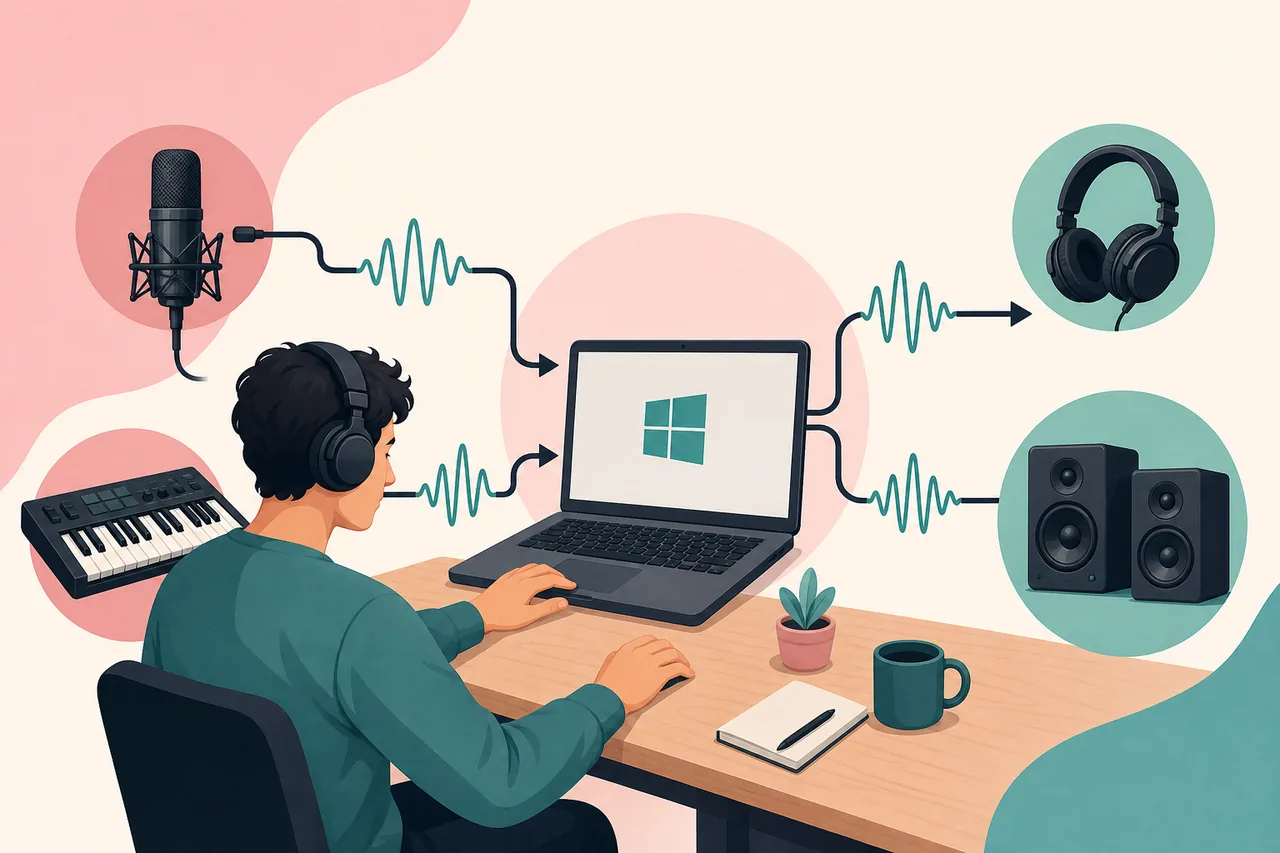
ASIO4ALL connects ASIO hosts to Windows WDM audio drivers. Both sides of that bridge are Windows-specific in this context. macOS has a different audio architecture called Core Audio, which applications use for low-latency input, output, MIDI timing, device selection, and sample-rate control.
Because Core Audio is built into macOS, a universal wrapper named ASIO4ALL is not normally needed. Some professional interfaces still install a vendor control application or driver to expose routing, DSP mixing, firmware, or special channel modes, but the DAW-facing audio system remains Core Audio.
Websites offering an ASIO4ALL DMG, PKG, Mac crack, or converted Windows executable are not offering an official ASIO4ALL release. Do not use Wine or a virtual machine to handle live Mac audio unless the entire Windows application workflow is intentionally virtualized and its limitations are understood.
What to select in a Mac DAW
In FL Studio for macOS, Ableton Live, Logic Pro, Reaper, Cubase, and other Mac applications, choose Core Audio as the audio system when the application exposes that choice. Then select the built-in output or connected interface. Some programs simply list Core Audio devices without requiring a separate system selection.
If an interface manufacturer provides a macOS package, download it from the manufacturer's website. The package may add a routing mixer, firmware updater, or device-specific low-latency features. Confirm that the release supports your macOS version and Apple silicon or Intel architecture before installing it.
Begin with a moderate buffer such as 128 or 256 samples. Core Audio buffer principles are similar to ASIO: smaller values reduce software monitoring delay but increase processing pressure, while larger values improve stability for heavy mixing sessions.
| Mac need | Use this | Avoid |
|---|---|---|
| Built-in speakers or microphone | Core Audio device in the DAW | Unofficial ASIO4ALL for Mac files |
| Professional audio interface | Manufacturer's supported macOS software and Core Audio | Windows EXE installers |
| Use input from one device and output from another | Audio MIDI Setup aggregate or multi-output device | Assuming independent clocks will always stay synchronized |
| Run a Windows-only DAW plugin workflow | A supported native alternative or deliberate virtualization test | Expecting ASIO4ALL to become a native Mac driver |
Use Aggregate Devices when you need multiple devices
macOS Audio MIDI Setup can create an Aggregate Device that combines inputs and outputs from more than one Core Audio device. This is the closest common Mac workflow to the device aggregation users sometimes attempt with ASIO4ALL on Windows, but it is a native macOS feature rather than an ASIO driver.
Open Audio MIDI Setup, choose the add control, create an Aggregate Device, select the required devices, and choose a clock source. Enable drift correction where appropriate for devices that are not the master clock. Then select the aggregate device inside the DAW.
Aggregation is convenient but not always ideal. Separate USB devices may have independent clocks and different latency. For critical multichannel recording, one interface with enough inputs and outputs is usually more stable than combining consumer devices.
- Open Audio MIDI Setup
Find it in Applications → Utilities or through Spotlight.
- Create an Aggregate Device
Use the add control and select the devices needed for input and output.
- Choose the clock source
Use the most stable primary interface and apply drift correction when appropriate.
- Select it in the DAW
The aggregate device appears as a Core Audio option.
- Test every channel
Check sample rate, routing, drift, and monitoring latency before recording.
Avoid fake Mac download pages
A legitimate ASIO4ALL download is a Windows executable from the official project. A site that changes the extension, wraps the file in a downloader, or claims to unlock a premium Mac edition is misrepresenting the product. ASIO4ALL is free and has no official macOS build to unlock.
When a search result says ‘ASIO4ALL Mac,’ look for an explanation rather than a download button. A useful page should tell you to use Core Audio, identify aggregate devices for multi-device routing, and direct interface owners to their hardware manufacturer.
If you moved a project from Windows to Mac, change the audio system inside the DAW and remap inputs and outputs. Project files and plugins may transfer, but the operating-system audio driver selection does not.
The official ASIO4ALL download page lists a Windows executable and Windows system requirements.
ASIO4ALL Mac download alternative checklist
Use this ASIO4ALL Mac download alternative checklist instead of installing a Windows executable on macOS. First open the DAW audio preferences and select Core Audio. For a USB interface, install the manufacturer's macOS software only when its support page requires it; many class-compliant devices work without an extra driver. Confirm playback and recording with that single device before combining hardware.
When two devices are genuinely necessary, open Audio MIDI Setup and create an Aggregate Device. Choose a reliable clock source, enable drift correction where appropriate, and then select the aggregate device in the DAW. Test channel order, sample rate, and synchronization with a short recording. Repeating the ASIO4ALL Mac download alternative checklist after reconnecting the devices confirms whether the setup is dependable rather than temporarily available.
Delete any file advertised as an ASIO4ALL installer for Mac. The official project publishes a Windows executable, not a DMG or PKG. Core Audio already supplies the low-latency system layer that macOS applications use, so the correct solution is a native device choice, an official manufacturer driver, or an aggregate configuration.
- Never run or convert the Windows ASIO4ALL executable on a Mac.
- Prefer one audio interface when an aggregate device is not required.
- Verify manufacturer software against the exact macOS version and hardware model, then confirm microphone permission for the DAW in macOS Privacy & Security settings before recording to avoid a silent input after the driver choice changes.
ASIO4ALL Mac FAQ
Can I download ASIO4ALL for Mac?
No. There is no official macOS version. ASIO4ALL is designed for Windows WDM audio.
What is the Mac equivalent of ASIO4ALL?
Use Core Audio, which is built into macOS. For multiple devices, create an Aggregate Device in Audio MIDI Setup.
Do I need an audio interface driver on Mac?
Many class-compliant devices work through Core Audio, while others use manufacturer software for routing, firmware, or special features. Follow the device maker's instructions.
Can Wine run ASIO4ALL on macOS?
That does not turn ASIO4ALL into a native Mac driver. A virtualized Windows audio path adds complexity and is not the normal solution for Mac DAWs.
Does FL Studio for Mac need ASIO4ALL?
No. FL Studio on macOS uses Core Audio devices rather than ASIO4ALL.