
Does ASIO4ALL work on Windows 11?
Yes. The official ASIO4ALL 2.22 release notes state that Windows 10 and Windows 11 are officially supported. This is a meaningful change from old download pages that still describe 2.13 or 2.15 as the current driver. The verified 2.22 installer was released on July 23, 2026 and is approximately 544 KB.
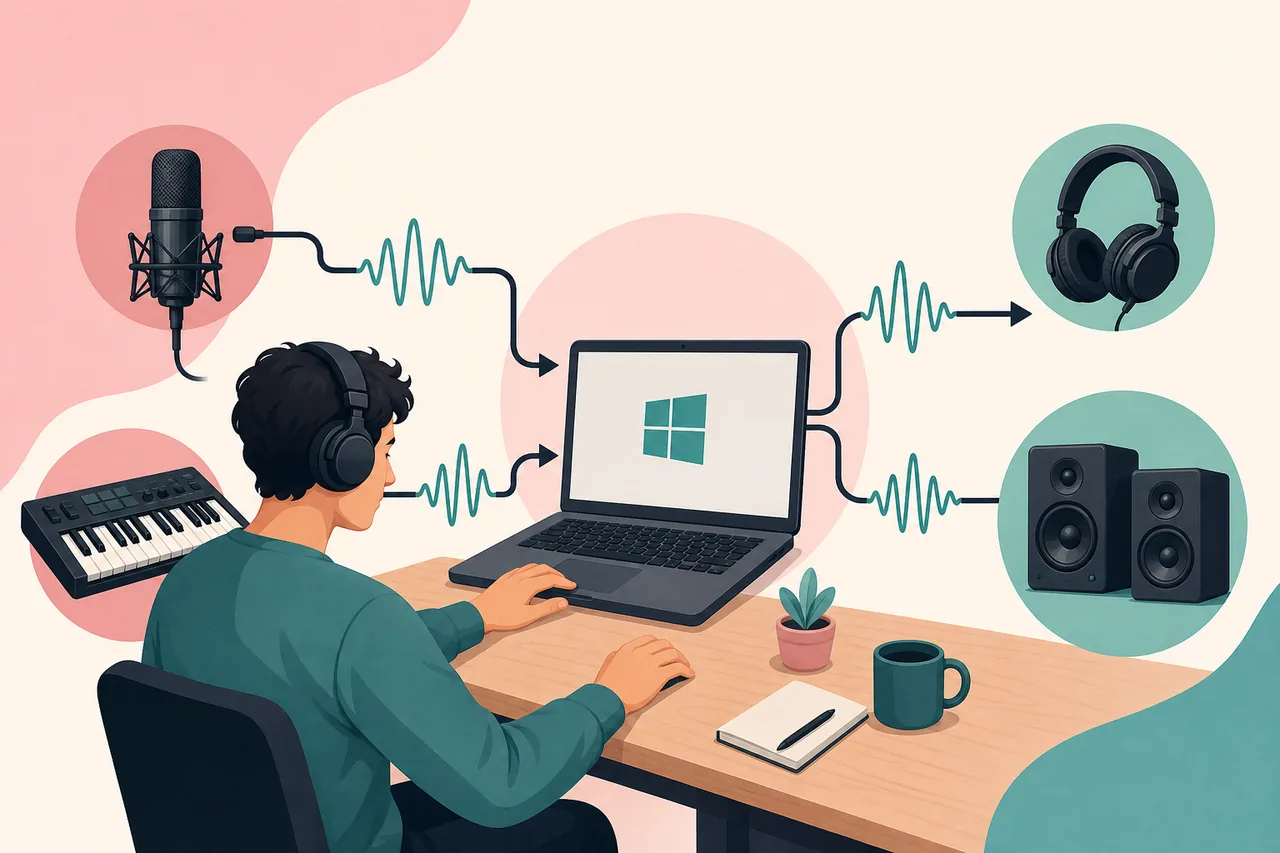
ASIO4ALL connects an ASIO-capable application to Windows WDM audio endpoints. On a Windows 11 laptop, that may include the built-in speakers, headphone output, internal microphone, USB microphone, HDMI audio, or a consumer USB sound device. It does not create hardware inputs or improve the analog quality of the device; its job is to provide a lower-latency ASIO path when a native manufacturer driver is unavailable.
| Windows 11 system | Support | Recommendation |
|---|---|---|
| Windows 11 x64 | Officially supported | Use ASIO4ALL 2.22 and begin with a 256-sample buffer. |
| Windows 11 ARM64 | Generally works, not native | Test every endpoint; use Alternative Buffer Synchronization if the integrated mic requires it. |
| Windows 11 S mode | Installer restrictions may apply | Leave S mode only if you understand the security impact; do not use unofficial repacks. |
| Windows 11 with a pro audio interface | Compatible but often unnecessary | Prefer the interface maker's current native ASIO driver first. |
How to install ASIO4ALL on Windows 11
Close all programs that can play or record audio before starting. This includes your DAW, browser tabs playing media, Discord, streaming software, and Windows sound settings. Closing them reduces the chance that an endpoint appears unavailable the first time the ASIO4ALL panel opens.
Run the official executable and complete the normal installer. Version 2.22 always includes Offline Settings, so you will not see the old optional component choice described by outdated tutorials. When setup finishes, reopen the DAW and select ASIO4ALL v2 in its audio or device preferences. A complete Windows restart is usually not required.
- Download the verified file
Use the official-source button above. Expect the filename
ASIO4ALL_2_22.exe. - Complete Windows setup
Approve the installer only when the file and source match what you expected, then finish the wizard.
- Select ASIO4ALL in the DAW
Open audio preferences and choose ASIO4ALL v2, not a generic Windows shared-mode device.
- Enable one input and one output
Open the control panel and activate only the endpoints required for the session. Fewer active devices usually make diagnosis easier.
- Test latency and stability
Start at 256 samples. Lower the buffer while recording or raise it when a large project clicks or drops out.

Windows 11 ARM64 and integrated microphone notes
ASIO4ALL 2.22 does not include a native ARM version. The official notes say it generally works well on Windows 11 for ARM64, which means it relies on Windows compatibility rather than running as native ARM code. Do not interpret that as a guarantee for every Snapdragon laptop or every built-in audio codec.
The official release notes identify a specific issue with the Qualcomm Aqstic integrated microphone. If it does not work with the defaults, open advanced settings and select Alternative Buffer Synchronization. Test the microphone and output together before a recording session. If a device manufacturer supplies a Windows on ARM driver with native ASIO support, compare it with ASIO4ALL and keep the more stable route.
Source: official ASIO4ALL 2.22 release notes.
Fix ASIO4ALL Windows 11 audio problems
If there is no sound, first open the ASIO4ALL control panel and confirm that the intended output has a lit power icon. A red cross or unavailable symbol often means another application owns the endpoint, the endpoint is disabled in Windows, or its format conflicts with the DAW. Close competing apps and reopen the host before changing many advanced options.
Clicks and crackles usually indicate that the buffer is too small for the current CPU and plugin load, or that multiple devices do not share a stable clock. Raise the buffer, disable unused endpoints, and use matching sample rates. Bluetooth headsets add substantial transport latency and may switch between high-quality playback and low-quality headset modes, so wired headphones are more predictable for music production.
If ASIO4ALL does not appear in the DAW, close and reopen the application. Restart Windows only after that simple rescan fails. Also confirm that the application supports ASIO; ordinary browser audio settings and many consumer apps do not expose ASIO drivers.
- Red endpoint icon: close programs using the device and verify it is enabled in Windows Sound settings.
- No driver in the DAW: reopen the host, then reinstall from the official source if needed.
- Crackling: increase the buffer and reduce active devices before changing resampling options.
- Input works but output does not: verify the selected endpoint and match the DAW sample rate.
- Very high latency: avoid Bluetooth and test a wired output at a smaller stable buffer.
ASIO4ALL Windows 11 setup checklist
Use this ASIO4ALL Windows 11 setup checklist after installation, before opening an important recording project. In Windows Sound settings, confirm that the intended input and output are enabled, note their default format, and disconnect unused USB or Bluetooth audio devices. Then open only the DAW, choose ASIO4ALL v2, and activate the same endpoints in advanced view. This controlled starting point makes device conflicts easier to identify.
Run a short playback test at 256 samples, followed by a microphone or instrument recording test. Listen for repeated clicks, channel loss, or a growing delay. If the test is clean, lower the buffer one step at a time for live monitoring. If it fails, return to the last stable value instead of enabling several advanced options together. A successful ASIO4ALL Windows 11 setup checklist ends with both playback and recording working after the DAW is closed and reopened.
- Confirm the DAW, Windows device, and project use compatible sample rates.
- Record the stable buffer value so it can be restored after troubleshooting.
- Prefer a native interface ASIO driver when the hardware maker provides a current one.
ASIO4ALL Windows 11 FAQ
Which ASIO4ALL version should I use on Windows 11?
Use the current official release, ASIO4ALL 2.22, unless a specific application or hardware vendor documents a compatibility reason to use something older.
Is there a separate ASIO4ALL 64-bit download?
No separate third-party download is needed. Use the standard current installer from asio4all.org for a normal 64-bit Windows 11 system.
Does ASIO4ALL work on Windows 11 ARM?
The official 2.22 notes say it generally works, but there is no native ARM build. Some integrated microphone hardware may require Alternative Buffer Synchronization.
Why does ASIO4ALL show a red cross on Windows 11?
The endpoint may be disabled, unavailable, or in use by another program. Close other audio apps, check Windows Sound settings, and reopen the DAW.
Do I need to restart Windows 11 after installation?
Usually not. Reopen your DAW first. Restart Windows only if the driver or endpoints still do not appear.
Get ASIO4ALL 2.22, then return to this guide for setup.
The official download opens after a 15-second source check.