
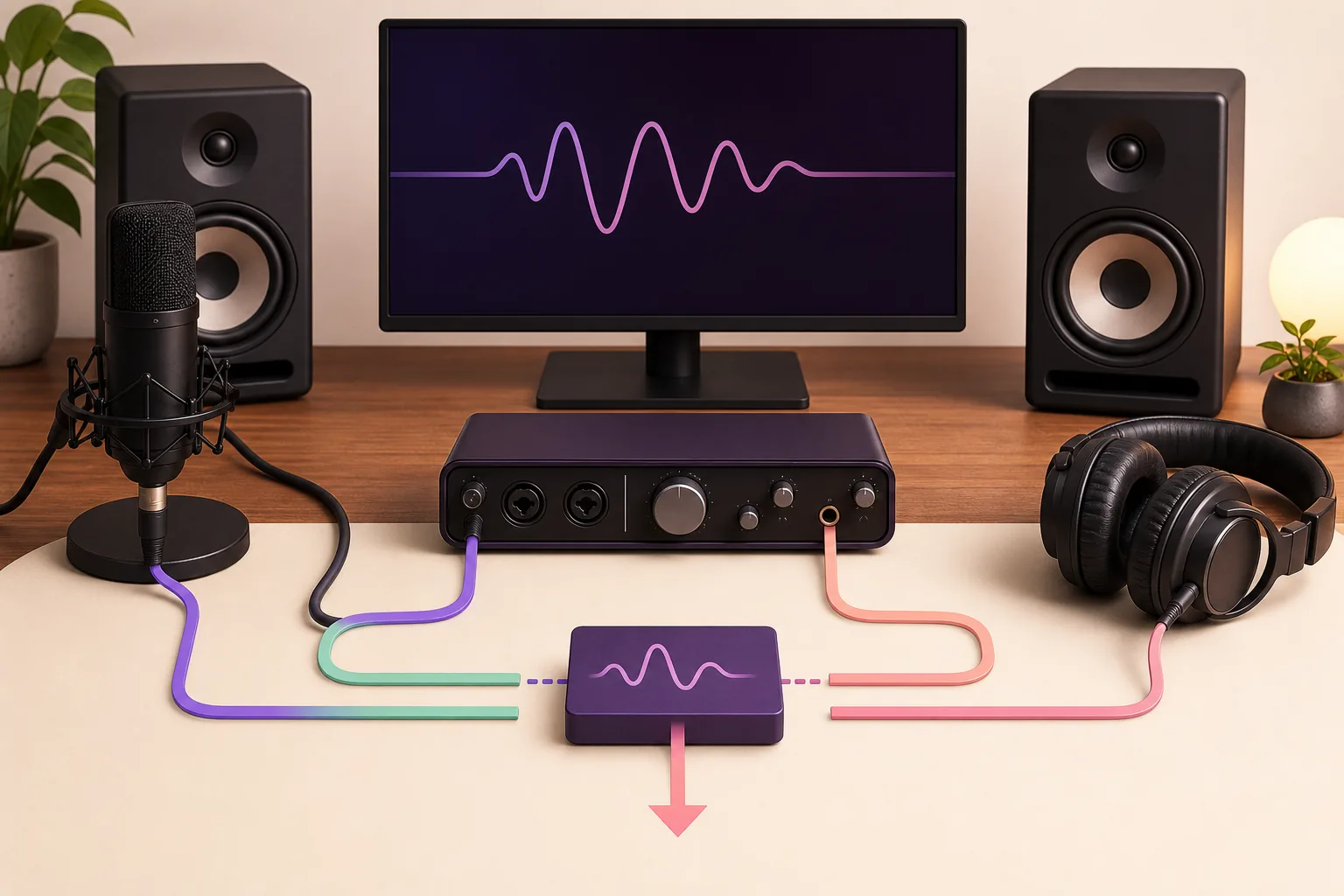
What you are actually removing
ASIO4ALL is a software bridge used by ASIO-capable hosts to reach Windows audio devices through WDM. The uninstall entry belongs to that bridge. It is not the same thing as the Realtek, USB Audio, HDMI, Bluetooth, microphone, or audio-interface driver shown in Device Manager. Removing the wrong item can make the hardware disappear from Windows even though ASIO4ALL itself is gone.
The safest boundary is simple: remove the program named ASIO4ALL, leave the device drivers that Windows and other audio applications still need, and let the host fall back to its own audio options. If your real goal is to change buffer size, select another endpoint, or fix no sound, use the existing ASIO4ALL control-panel guide or no-sound recovery guide first. Uninstalling is a reset or removal decision, not a universal latency fix.
| Object | Remove it? | Why it matters |
|---|---|---|
| ASIO4ALL application / driver layer | Yes, when you no longer need ASIO4ALL | This is the item the uninstall procedure targets. |
| Realtek, USB Audio, HDMI, Bluetooth, or interface driver | Usually no | Other Windows audio paths and native drivers may depend on it. |
| DAW audio preferences | No | Keep them until you have confirmed which replacement host or driver works. |
| Manufacturer native ASIO driver | No | It may be the better replacement for an audio interface. |
Before you uninstall: save a working baseline
If ASIO4ALL currently produces sound, take one minute to record what works. Note the DAW, the selected audio system, the input and output device names, the sample rate, the buffer size, and whether the problem appears only when another application is playing system audio. This small baseline prevents a reinstall loop where every change is made at the same time.
Open the ASIO4ALL panel only to record the current state; you do not need to change the buffer or disable devices before uninstalling. The existing Offline Settings guide explains the endpoint view. If the panel shows a red cross or the host is already silent, capture that state and start with the no-sound checklist instead of assuming the uninstall itself will repair the routing.
- Close audio software
Quit the DAW, plugin host, browser tabs using audio, conferencing tools, and any control-panel window that might still hold the device.
- Write down the baseline
Record the host name, selected driver, device endpoints, sample rate, buffer, and the first symptom you want to test after removal.
- Protect the device driver
Do not open Device Manager to remove Realtek, USB Audio, HDMI, Bluetooth, or interface hardware as part of this procedure.
- Choose one replacement path
Decide whether you will use the manufacturer native ASIO driver, Windows audio, WASAPI, or another installed host after ASIO4ALL is removed.
A screenshot of the control panel can document the device names, but it cannot prove which Windows driver package should be deleted.
How to uninstall ASIO4ALL in Windows 11
Windows 11 normally exposes the uninstall entry through Settings. Search for the exact ASIO4ALL name rather than guessing from a similarly named audio package. If you installed several versions over time, use the installed-app details and the date or publisher information to identify the ASIO4ALL entry, then remove only that entry.
Keep the DAW closed until the removal is complete. A host that is still holding an ASIO handle can make the uninstall appear incomplete or can leave you testing a cached device list. After the restart, open the host with the replacement audio system selected and test a short project before changing several other settings.
- Open Installed apps
Open Start → Settings → Apps → Installed apps. Use the search box and type ASIO4ALL.
- Confirm the target
Check that the entry is ASIO4ALL, not your Realtek, USB interface, HDMI, Bluetooth, or manufacturer driver package.
- Choose Uninstall
Open the three-dot menu for ASIO4ALL, choose Uninstall, and follow the installer removal dialog. Do not launch a random cleanup utility.
- Restart when requested
If Windows or the uninstaller requests a restart, save work and restart before judging whether the driver list has changed.
- Test one host
Open the DAW with a native driver, WASAPI, or another known option and confirm playback before restoring your full project.
| Windows 11 check | Expected result | If it does not happen |
|---|---|---|
| ASIO4ALL appears in Installed apps | The entry can be removed from its own menu | Check Control Panel, then verify you are looking at the same Windows user and installation. |
| Uninstall finishes | The ASIO4ALL entry disappears or asks for a restart | Restart and check again; do not delete unrelated audio drivers. |
| DAW opens after removal | A replacement audio system is selectable | Use the host's audio-device settings and the no-sound guide. |
Windows 10 and Control Panel fallback
On Windows 10, the classic Programs and Features view is often the clearest fallback. Open Control Panel, choose Programs → Programs and Features, select ASIO4ALL from the installed-program list, and choose Uninstall or Change. The wording can vary by installer, but the target should remain the ASIO4ALL program entry, not the driver for the sound card or interface.
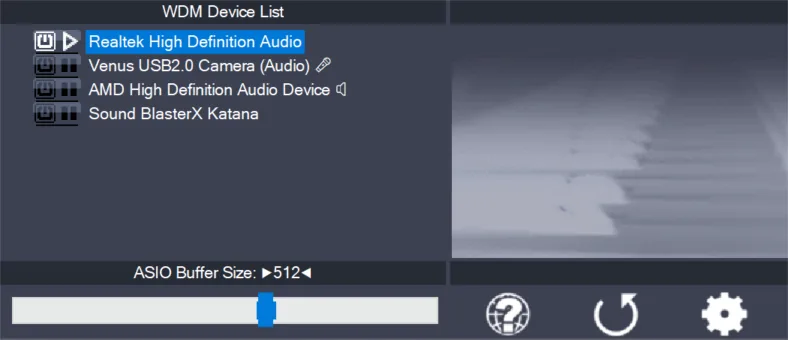
If the entry is missing, do not jump straight to registry deletion. The program may already be removed, the installer may have been interrupted, or a different Windows account may have installed it. Check the current DAW driver list, restart, and use the official ASIO4ALL source only if you need a verified reinstall. The archived installer image below is a visual reference from an older release, so its version text is not a claim about the current 2.22 package.
- Open Programs and Features
Press Start, search for Control Panel, then open Programs → Programs and Features.
- Select ASIO4ALL
Choose the ASIO4ALL row and confirm the publisher or program name before selecting Uninstall or Change.
- Complete the removal
Follow the original uninstaller and restart if it asks. Do not use Device Manager as a substitute for the program uninstaller.
- Verify the fallback
Open your host and choose the replacement audio system. If the host cannot see the device, restore the manufacturer's device package rather than deleting more entries.
The official Microsoft guidance covers Windows app removal paths; use the ASIO4ALL program entry rather than removing the underlying hardware driver.

What uninstalling removes — and what it does not
The most common mistake is treating every audio item as one driver. ASIO4ALL provides a software layer that exposes selected Windows audio endpoints to an ASIO host. The Windows device driver still belongs to the hardware or device class. After ASIO4ALL is removed, Windows may still play sound through the same speakers or interface, but the DAW will need another audio system to reach them.
Uninstalling also does not automatically repair a broken project. A DAW may still remember ASIO4ALL as its last selected system, and a project may still expect a sample rate, input range, or output that is not available through the replacement. Change one variable at a time: first select the replacement host, then choose the output, then test playback, then test recording.
For the current source and version facts, use the official ASIO4ALL 2.22 page and the Microsoft Windows uninstall guidance. Those links support the removal boundary; they do not mean every computer should use the newest driver or uninstall a native manufacturer driver.
| Item after removal | Likely state | Safe next action |
|---|---|---|
| ASIO4ALL in the DAW driver menu | No longer available | Select a native ASIO, WASAPI, or other installed host. |
| Windows playback device | Usually still present | Test it in Windows first, then in the DAW. |
| Manufacturer or class driver | Still installed | Keep it unless you are doing a separate driver repair. |
| DAW project settings | May still reference the old host | Re-select the audio system and check input/output ranges. |
| ASIO4ALL configuration | No longer used by the removed layer | Keep your notes if you later reinstall and need to rebuild the baseline. |
After removal: verify playback or reinstall safely
Start with a small test project or a new empty session. Play a known audio file, watch the host meter, and confirm that the Windows output is the one you expect. Then test an input only if you need recording. This order separates a missing output selection from a missing microphone permission, sample-rate mismatch, or plugin problem.
If the replacement driver is unstable, document the exact symptom before reinstalling. Crackles, a missing endpoint, a silent meter, and a host that refuses to open are different failures. The existing ASIO4ALL alternatives guide can help compare a native driver, WASAPI, FlexASIO, or another path. If you decide to reinstall ASIO4ALL, use the official download page and verify the package name instead of using a repackaged mirror.
The version freshness check for this site found ASIO4ALL 2.22 as the current verified Windows package on August 22, 2026. This page intentionally has no download button because its task is removal. A reinstall link is a fallback reference, not a promise that ASIO4ALL is the best choice for every interface or DAW.
- Test Windows playback
Play a short system sound or local audio file and confirm the intended output device works outside the DAW.
- Test the DAW with one host
Choose one replacement audio system, open a simple project, and check the master meter and output.
- Test recording separately
If needed, select one microphone or interface input and record a short clip. Do not change buffer, sample rate, and driver together.
- Reinstall only with evidence
If the removal caused a real regression and no native path works, use the official ASIO4ALL source, then rebuild the baseline one endpoint at a time.
| Symptom after uninstall | First check | Avoid |
|---|---|---|
| Windows audio is silent | Confirm the Windows output and volume mixer | Reinstalling ASIO4ALL before checking the output. |
| DAW has no driver | Open the DAW audio settings and choose an installed host | Deleting device drivers from Device Manager. |
| Microphone is missing | Check Windows input permissions and the device package | Assuming the ASIO layer owned the microphone hardware. |
| Latency is higher | Check the replacement host, buffer, plugins, and monitoring path | Promising zero latency or removing drivers at random. |
Common mistakes to avoid
A safe uninstall is deliberately boring. Do not run a registry cleaner, delete ASIO DLL files by hand, remove every item containing the word Audio, or install a mirror package simply because the original entry is hard to find. Those actions make it harder to tell whether the problem came from ASIO4ALL, Windows, the DAW, or the hardware driver.
If you are changing from ASIO4ALL to a native interface driver, install and test the native driver according to the hardware maker's instructions. The installation guide is useful when you later return to ASIO4ALL, while this page remains focused on removing the software layer cleanly.
- Do not remove Realtek, USB Audio, HDMI, Bluetooth, or interface drivers as a shortcut.
- Do not assume uninstalling fixes plugin delay, Bluetooth delay, or a bad sample-rate choice.
- Do not judge the result from one large project with unknown routing; use a small proof session.
- Do not use a third-party mirror when the official ASIO4ALL source is available.
- Do keep a note of the last working host and endpoint selection before you reset the setup.
Post-uninstall verification checklist
Before you consider the change complete, verify the software removal and the audio path separately. A clean uninstall can still be followed by a DAW configuration problem, and a working Windows sound path does not prove that the DAW input is configured.
Use this checklist as a compact handoff if you are troubleshooting with another person. It records what changed without asking you to remove more drivers than necessary.
- ASIO4ALL was removed from Installed apps or Programs and Features.
- The underlying Windows audio device still appears in Windows.
- A small Windows playback test succeeds.
- The DAW opens with one replacement audio system selected.
- Playback and, when needed, recording were tested separately.
- The next action is based on the observed symptom, not on a registry cleaner or random driver deletion.
FAQ
How do I uninstall ASIO4ALL on Windows 11?
Close your DAW, open Settings → Apps → Installed apps, search for ASIO4ALL, choose its three-dot menu, select Uninstall, and restart if requested. Then test the DAW with one replacement audio system.
How do I uninstall ASIO4ALL on Windows 10?
Use Control Panel → Programs → Programs and Features, select ASIO4ALL, and choose Uninstall or Change. Do not select the Realtek, USB Audio, HDMI, Bluetooth, or interface driver next to it.
Should I remove my Realtek or USB audio driver too?
Usually no. Those are underlying Windows device drivers. ASIO4ALL uses Windows audio endpoints, so removing the device driver can break other playback and recording paths.
Does uninstalling ASIO4ALL fix latency?
Not automatically. Latency can come from the buffer, plugins, Bluetooth, USB transport, monitoring, or the replacement host. Uninstall only when you have a clear reason to remove the ASIO layer.
What if ASIO4ALL is missing from Installed apps?
Check Control Panel, restart Windows, and inspect the DAW's available hosts. Avoid deleting DLLs or registry entries by hand; if the entry is already gone, focus on selecting or repairing the intended replacement driver.
Can I reinstall ASIO4ALL after uninstalling it?
Yes. If you need it again, use the official ASIO4ALL source and verify the current package. For this site, the verified current Windows package is ASIO4ALL 2.22, but a native manufacturer driver may still be the better choice for supported hardware.