
What counts as an ASIO4ALL alternative?
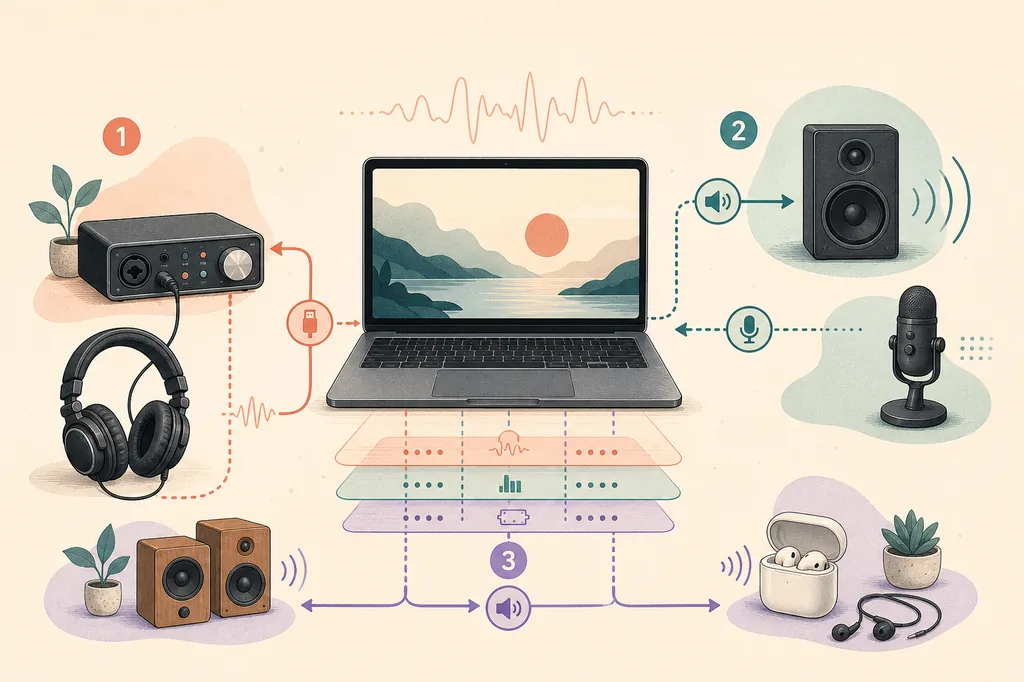
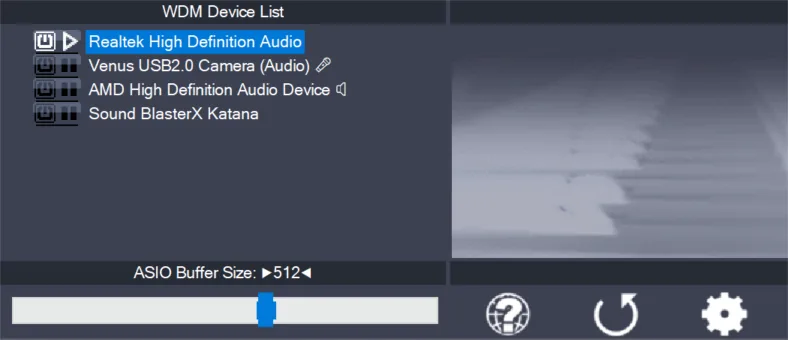
ASIO4ALL is a compatibility layer: an ASIO-capable host can use Windows WDM audio endpoints through it. That makes it useful when a laptop, motherboard, webcam, HDMI device, or older USB product does not expose its own ASIO driver. It does not replace the underlying Windows device driver and it cannot add physical inputs, hardware monitoring, clock controls, or a better analog converter.
An alternative can therefore mean three different things. A native interface driver replaces the compatibility layer with hardware-specific software. FlexASIO is another configurable bridge for some WDM devices. WASAPI is the Windows audio path that many general-purpose applications use directly. These options solve different problems, so the correct comparison starts with the host and device rather than a slogan such as “lowest latency.”
If your only goal is to open a DAW with a built-in output, ASIO4ALL may still be the most direct choice. If you own a current USB interface with a supported driver, installing another wrapper can add another failure point without adding a feature. If you are editing in Audacity or watching a video, WASAPI may be more predictable than forcing an ASIO route.
| Option | Best fit | Main tradeoff |
|---|---|---|
| Native interface ASIO | A current audio interface with a manufacturer driver | Hardware-specific setup; not available for every WDM device |
| FlexASIO | A configurable ASIO layer for selected WDM devices | More configuration and troubleshooting than ordinary Windows audio |
| WASAPI | Audacity, browsers, video, and stable Windows playback | Not the same low-latency ASIO workflow used by many DAWs |
| ASIO4ALL | Built-in or several WDM endpoints inside an ASIO host | Device conflicts, buffer limits, and clock differences remain possible |
Use the manufacturer's native ASIO driver first
For a supported USB audio interface, the manufacturer's native ASIO driver is normally the first alternative to test. It can expose the interface's inputs and outputs directly and may include controls for direct monitoring, clocking, firmware, routing, and hardware-specific buffer behavior. Those features are not something ASIO4ALL can create for hardware that does not expose them through Windows.
A native driver is not automatically perfect. Check that the package supports your Windows release, close competing audio applications during installation, and test the same project with the same sample rate and monitoring path. If the interface has a recent and stable driver, it is usually clearer to fix that driver than to stack ASIO4ALL on top of it.
A useful first test is deliberately small: select the native driver in the DAW, enable one known output, play a short project, and record a short input if one is connected. Reopen the DAW and repeat the test. If the native path stays available and stable, there is little reason to move the session to a compatibility wrapper.
- Install the official hardware package
Use the interface maker's own support page and confirm the Windows version before installing.
- Select the native driver in the host
Choose the exact interface driver in the DAW rather than a generic ASIO label.
- Test one output and one input
Keep the first test small so an unavailable endpoint or wrong sample rate is easy to identify.
- Compare only after a clean baseline
If you later test ASIO4ALL or FlexASIO, keep the project and sample rate unchanged.
Ableton's Windows ASIO guidance also recommends the manufacturer's native driver when one is available. Read the official guidance in a new tab before changing a working interface setup: Ableton Windows audio guidance.
FlexASIO: a configurable alternative for WDM devices
FlexASIO is worth considering when the computer has WDM devices but the host needs an ASIO entry. Its official documentation describes it as a universal ASIO driver for Windows that can use different backends and be configured for a particular setup. That makes it a genuine alternative to test, but not a universal replacement for a hardware manufacturer's driver.
The important difference is workflow. ASIO4ALL exposes a familiar device panel; FlexASIO may require configuration outside the host, and the available backends and device combinations depend on the machine. Read the project's official documentation before changing a working setup, and keep a record of the previous driver and buffer value so you can return to a known state.
FlexASIO is most interesting for a WDM-only laptop, a simple single-device recording path, or a host where the current ASIO4ALL route has a reproducible compatibility problem. It is less attractive when your interface already has a supported native driver, or when your application only needs ordinary Windows playback.
- Treat FlexASIO as a driver layer, not as new audio hardware.
- Test one input and one output before combining devices.
- Keep the project sample rate and Windows format aligned during comparison.
- Do not assume a different wrapper will remove Bluetooth, plugin, or monitoring latency.
- Use the official FlexASIO documentation rather than a repackaged installer page.
Source: the official FlexASIO project documentation. It is a third-party project; this page does not host or modify its files.
WASAPI is often the simpler choice for everyday Windows audio
WASAPI is Windows' native audio API, so it is often the most sensible path for ordinary playback, browser audio, video, and applications such as Audacity that do not require an ASIO workflow. It avoids adding a separate ASIO compatibility layer just to make a normal Windows endpoint play sound.
Shared mode lets several applications use the Windows audio engine together. Exclusive mode gives an application more direct control of the endpoint, but it can block other programs while the stream is active. Neither mode should be described as a universal low-latency replacement for a native interface driver; the useful choice depends on whether you are recording, monitoring, editing, or simply playing back.
If a user reports that the DAW works but browser audio disappears, first check whether the chosen ASIO path has taken exclusive control of the output. Switching the everyday application back to WASAPI or the normal Windows device can be more appropriate than trying to make every program share the same ASIO route.
| Situation | Usually start with | Why |
|---|---|---|
| Recording through a supported USB interface | Native interface ASIO | Direct hardware features and a clearer device path |
| Laptop WDM device in an ASIO-only DAW | ASIO4ALL or FlexASIO | A compatibility layer can expose the endpoint to the host |
| Audacity editing or system playback | WASAPI | Normal Windows routing is easier to share and diagnose |
| Browser or video loses sound after opening a DAW | WASAPI/shared Windows audio | Avoid an ASIO route holding the endpoint exclusively |
Microsoft documents WASAPI as part of Windows Core Audio. See the official WASAPI documentation for the shared and exclusive stream model.
When ASIO4ALL is still the right choice
An alternative guide should not imply that ASIO4ALL is obsolete. It remains a practical bridge when the host requires ASIO and the available hardware exposes only WDM. This includes built-in laptop audio, some consumer USB products, HDMI endpoints, and test situations where you need one DAW to see more than one Windows device.
The current ASIO4ALL release checked for this guide is 2.22. The official release page and installer should be the source of version and file claims; avoid old catalog pages that still call 2.13 or 2.15 current. A current version does not remove the need to close competing applications, enable only the needed endpoints, match sample rates, and test playback and recording.
Stay with ASIO4ALL when it solves the actual problem with fewer moving parts than the alternatives. Change drivers only for a concrete reason: a native interface package is available, a specific WDM device behaves better under another backend, or the application is better served by WASAPI.
For the current version and source checks, see the official ASIO4ALL 2.22 release page.
Compare drivers with a repeatable test
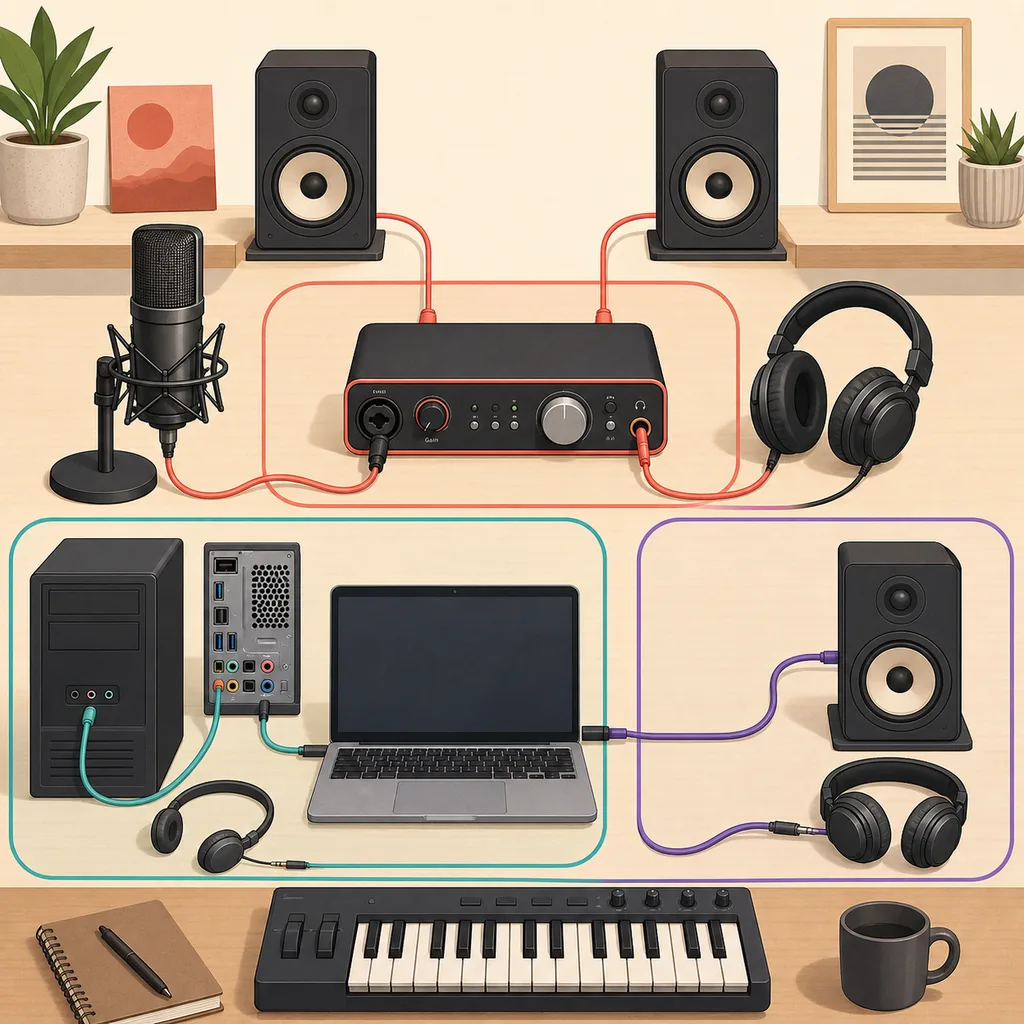
Do not compare alternatives by changing the driver, buffer, sample rate, project, and monitoring device all at once. That produces a different experiment every time. Pick one representative project and write down the Windows format, sample rate, buffer, active input, active output, and whether the browser or another audio application is open.
Start with a moderate buffer such as 256 samples, then run both playback and recording. Listen for clicks, missing channels, growing delay, or a device that becomes unavailable after reopening the DAW. A driver that reaches a smaller number but fails the second test is not a practical improvement.
After the test, close the DAW and open it again. Check whether the same endpoints are still available and whether normal Windows audio returns. This final reopen step catches exclusive-device and configuration-persistence problems that a one-minute playback test can miss.
- Record the baseline
Write down the driver, sample rate, buffer, input, output, and the project used for the comparison.
- Test playback
Play a representative section for several minutes and note crackles, dropouts, or unstable device status.
- Test recording
Record a short take, then listen to the saved file instead of relying only on moving meters.
- Reopen the host
Close and reopen the DAW, then check the same endpoints and sample-rate selection.
- Restore normal Windows audio
Confirm whether browser, video, and other applications can use the output after the DAW closes.
- Prefer a stable repeatable session over the smallest possible buffer.
- Do not aggregate unrelated devices until a single-device route works.
- Wired monitoring is easier to evaluate than Bluetooth when latency matters.
- Keep the previous installer and configuration notes available until the replacement passes the same test.
Common mistakes when replacing ASIO4ALL
Installing several ASIO wrappers does not make the system more professional. It can make host menus longer, leave competing endpoints open, and make it harder to know which layer owns a device. Keep one documented working route for the project and change one variable at a time.
A different driver also cannot fix every audio problem. Plugin look-ahead, Bluetooth transport, USB hubs, a mismatched sample rate, Windows exclusive mode, and an overloaded project can all create delay or dropouts outside the wrapper itself. A clean driver comparison must keep those factors visible.
Finally, do not remove the underlying WDM driver just because you stop using ASIO4ALL. ASIO4ALL, FlexASIO, and WASAPI still depend on the Windows audio device and its driver. If a device disappears after an uninstall, restore the manufacturer's Windows package and repeat the test from a known baseline.
- Do not promise zero latency from any software-only driver choice.
- Do not call a community mirror an official download source.
- Do not use a Mac alternative page as evidence for Windows driver behavior.
- Do not enable every endpoint before one simple playback path works.
- Do not delete a working native driver without a recovery plan.
ASIO4ALL alternative decision checklist
A good replacement decision begins with the device and host, not with a benchmark screenshot. Use the native interface driver when it is current and stable, use FlexASIO only when its configurable WDM path solves a real problem, and use WASAPI when the application needs normal Windows sharing more than an ASIO workflow.
If ASIO4ALL 2.22 already gives the DAW the required input and output, passes playback and recording, survives a reopen, and returns normal Windows audio afterward, there is no SEO-friendly reason to replace it. The useful outcome is a documented, repeatable session.
- The host and device require the selected driver path.
- One known input and one known output pass playback and recording.
- Sample rate and buffer values are recorded and repeatable.
- The DAW can reopen without losing the endpoints.
- Browser and system playback behave as expected after the test.
ASIO4ALL alternative FAQ
Is a native interface ASIO driver usually better than ASIO4ALL?
When the interface maker provides a current, stable driver, it is usually the first choice because it can expose hardware-specific inputs, outputs, monitoring, clock, and routing features. ASIO4ALL remains useful for WDM-only devices and built-in Windows audio.
Is FlexASIO a direct replacement for ASIO4ALL?
It can be an alternative ASIO layer for selected WDM setups, but it is not a universal replacement and it does not create hardware features. Read the official project documentation, test one device first, and keep a recovery path.
Should I use WASAPI instead of ASIO4ALL?
Use WASAPI when the application is designed for normal Windows audio, such as everyday playback, browsers, video, or many Audacity workflows. Use an ASIO path when the host and recording workflow specifically need it.
Will changing the driver automatically reduce latency?
No. Total latency also depends on the buffer, sample rate, plugins, monitoring, USB path, device conversion, and Bluetooth. Compare the same project with a repeatable playback and recording test.
Should I uninstall ASIO4ALL before testing an alternative?
Usually no. First document the working setup and test one alternative in the host. Do not remove the underlying Windows WDM driver, because ASIO4ALL, FlexASIO, and WASAPI still depend on the device and its Windows driver.
What is the current ASIO4ALL version to compare against?
The official source checked for this guide lists ASIO4ALL 2.22. Verify the version and installer details on the official release page before treating an older catalog listing as current.