
Check the signal path before reinstalling
A no-sound report can describe several different failures. The DAW may be using a different driver, ASIO4ALL may have no active output, Windows may have selected another playback device, or the project may be sending audio to a muted channel. Reinstalling the driver does not correct a muted master bus or a headphone plug connected to the wrong output.
Make the first test deliberately small. Close the browser, meeting software, media player, and any other application that may use the same speakers or microphone. In the DAW, load a simple project, select ASIO4ALL v2, enable one output, and play a known audio file. Do not aggregate several devices until one route works.
The table below separates the symptom from the first place to look. It also keeps the generic ASIO4ALL no-sound problem separate from application-specific pages: FL Studio, REAPER, and Ableton each have their own input, output, and monitoring controls.
| What you see | Likely layer | First check |
|---|---|---|
| ASIO4ALL is missing from the driver menu | Host or installation | Reopen the DAW and confirm that it supports ASIO4ALL v2. |
| Output has a red or unavailable status | WDM endpoint | Close competing apps and check that the Windows device is enabled. |
| Meters move but headphones are silent | DAW routing or endpoint | Check the master output and the exact enabled speaker or headphone endpoint. |
| Input is recorded but playback is silent | Monitoring or output | Choose a working output and check the track and master monitoring path. |
| Browser sound disappears after opening the DAW | Exclusive ownership | Close the host or return the everyday app to normal Windows audio. |
| Clicks appear together with silence or dropouts | Buffer or format | Match sample rates and raise the buffer before changing advanced options. |
Confirm the correct output and input in ASIO4ALL
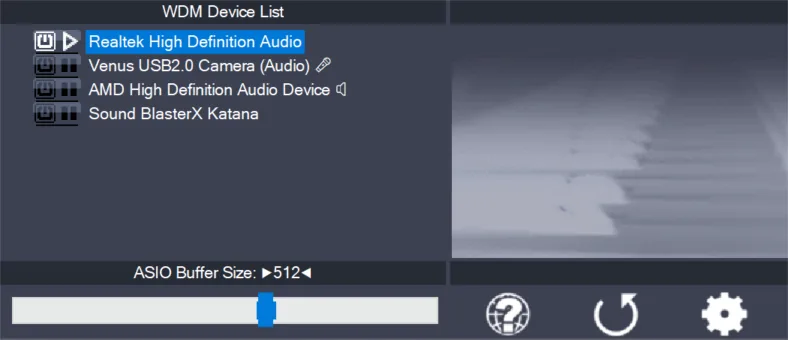
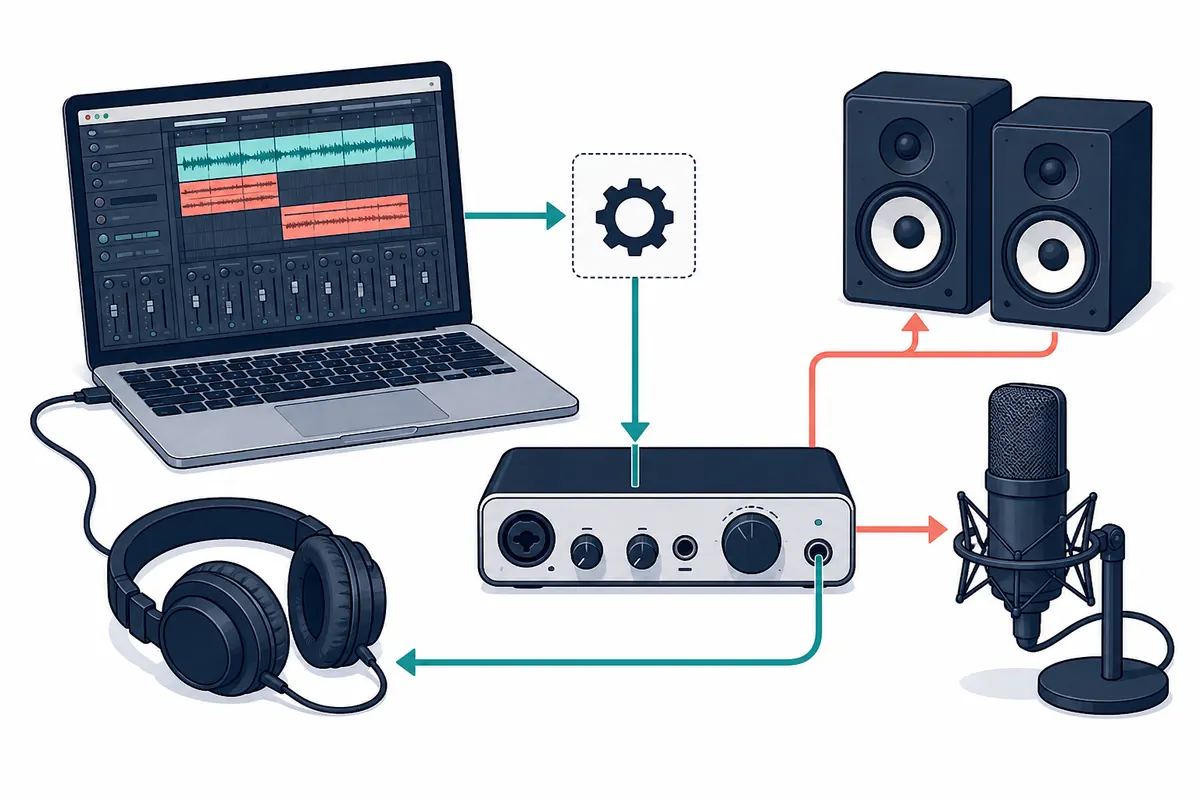
Open the ASIO4ALL control panel from the active host. In simple view, select the power icon beside the speakers, headphones, interface output, or microphone that the session actually uses. In advanced view, expand the device tree and select the specific WDM endpoint rather than assuming that the device name represents every input and output it contains.
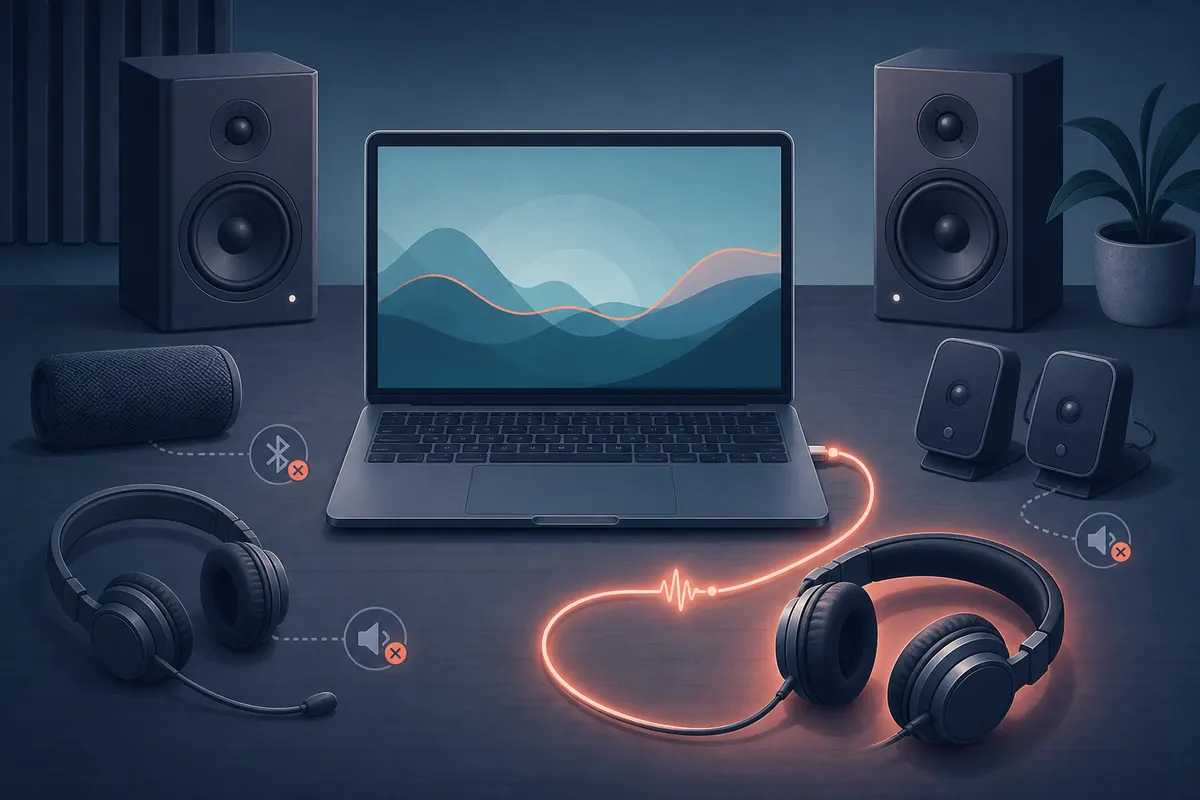
A device can work in ordinary Windows playback and still be unavailable to ASIO4ALL. Another program may hold the endpoint, Windows may have disabled it, or the endpoint format may not match the project. Turn off HDMI, disconnected Bluetooth devices, webcam microphones, and unused outputs while diagnosing. A one-output, one-input baseline makes the next error much easier to identify.
After enabling an endpoint, close the panel and play a short section. If nothing moves in the DAW meter, inspect the host's audio device and track routing. If the meter moves but the endpoint remains silent, inspect the selected output, Windows volume, headphone connection, and the device's own mute control. Avoid changing the buffer at this stage unless the symptom is an audible click or dropout.
- Select the host driver
Choose ASIO4ALL v2 in the DAW, then open the driver's control panel from the same audio settings screen.
- Enable one output
Turn on the exact speakers, headphones, or interface output used for monitoring. Leave other outputs off for the first test.
- Enable the needed input
Turn on the microphone or line input only when recording requires it; do not enable every endpoint by default.
- Play a known signal
Use a simple audio file or project and check both the DAW meter and the physical output before adding more devices.
Match sample rate and buffer size
A sample-rate mismatch can make an endpoint unavailable or can produce a route that appears active but does not play correctly. Check the DAW project rate and the Windows device format, then begin with a value both sides support, commonly 44.1 kHz or 48 kHz. Match the values directly before testing resampling.
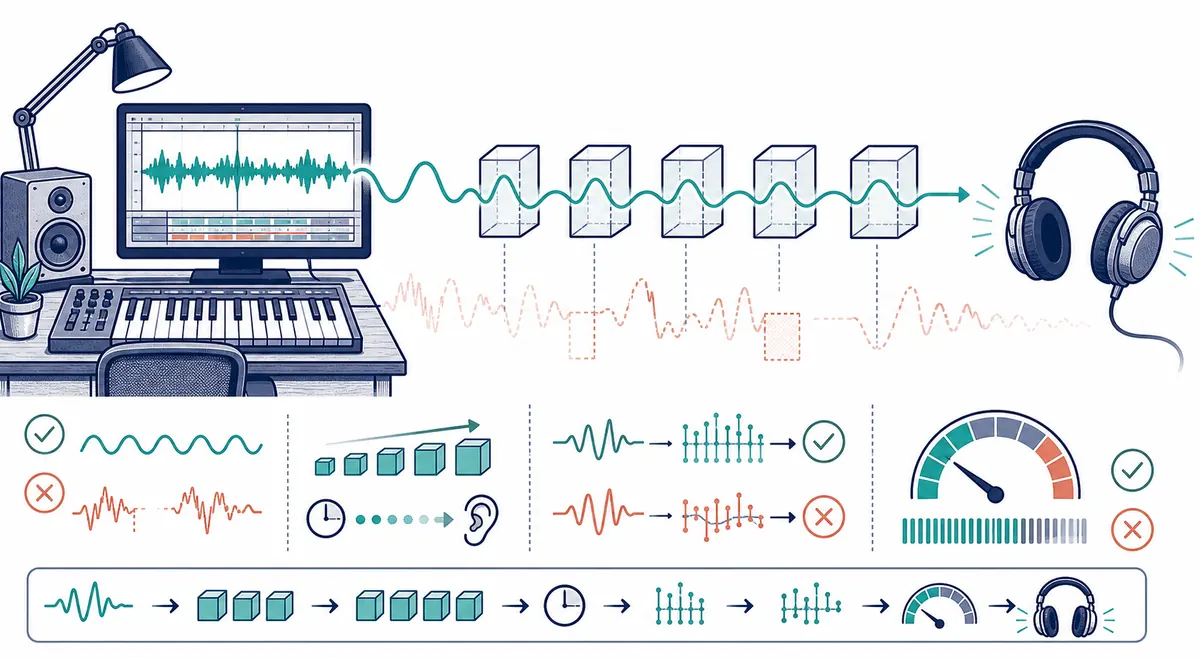
The ASIO buffer controls how much audio the computer processes in one block. A smaller buffer can reduce round-trip delay, but it gives the CPU less time to finish each block. A larger buffer can restore stable playback without fixing a wrong endpoint. Start at 256 samples, test, then try 128 for live monitoring or 512 when a large project produces clicks.
Do not treat the smallest number as the goal. Plugin look-ahead, USB transport, device conversion, and Bluetooth can add latency outside the ASIO buffer. If sound returns after raising the buffer, keep the stable value and investigate CPU load or the device path separately.
- Match the DAW and Windows device sample rates before enabling resampling.
- Change one control at a time and record the setting that produced a clean test.
- Use wired monitoring while diagnosing; Bluetooth adds transport delay and may switch audio modes.
- If a buffer change makes no difference to a completely silent meter, return to routing checks.
| Test situation | Starting point | What the result means |
|---|---|---|
| First diagnosis | 256 samples, matching sample rate | A stable baseline for separating routing from performance problems. |
| Live input monitoring | 128 or 64 samples if clean | Use only when playback and recording remain free of clicks. |
| Large mix or many plugins | 512 or 1024 samples | More processing time can prevent underruns and dropouts. |
| No output at every buffer | Return to one endpoint | The problem is more likely routing, ownership, format, or a disabled device. |
Check the DAW's own audio routing
ASIO4ALL can expose an endpoint without deciding where every track sends its signal. Check the DAW's master output, track output, input range, monitoring switch, and mute or solo state. A recording may contain valid audio while its return path points to an inactive output. Similarly, a moving master meter does not prove that the selected headphones are the active endpoint.
Application-specific pages are useful when this is the failure layer. The FL Studio guide covers its Audio settings and mixer route; the REAPER guide covers input/output ranges and track monitoring; the Ableton guide covers Input Config, Output Config, and the Master track. Use those pages for host-specific controls instead of changing the generic driver configuration repeatedly.
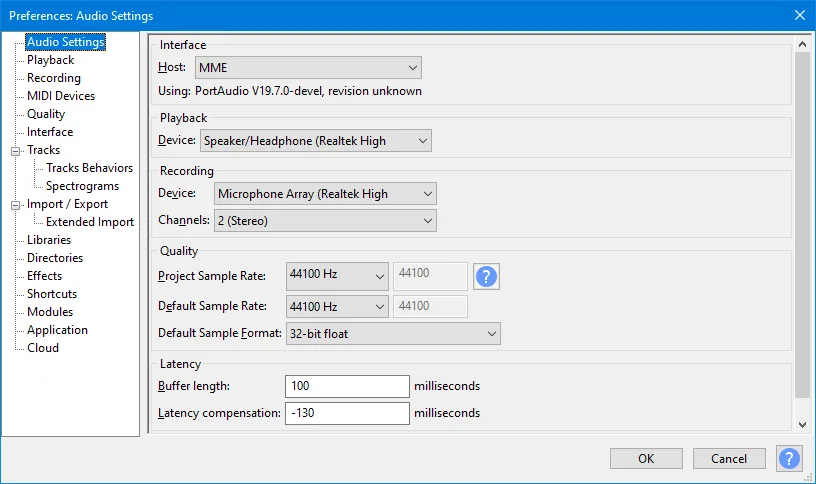
For Audacity and other general-purpose editors, check the host and playback device separately. WASAPI, MME, or DirectSound may be the correct host for that application; forcing an ASIO path is not a universal fix. The example below shows a host audio-settings screen, not the ASIO4ALL control panel.
Check whether another application owns the device
Windows audio endpoints are commonly shared by a DAW, browser, video call, game, and system sounds. An ASIO host may open an endpoint in a way that prevents another program from using it, especially when exclusive access is involved. Close the other programs, reopen the DAW, and test the one-device baseline before changing drivers.
If the DAW plays but the browser becomes silent, that is evidence of a routing or ownership conflict rather than proof that ASIO4ALL is broken. Decide which application needs the endpoint at that moment. A recording session may need the DAW to own the interface; ordinary video playback may be better served by the normal Windows device and WASAPI path.
Also check Windows Sound settings for the default output, mute state, volume mixer, disabled endpoints, and application-specific output selection. The Windows speaker icon and the ASIO4ALL endpoint list are related but are not the same control surface.
- Close browsers, meeting apps, media players, and other DAWs during the first test.
- Confirm that the physical headphones or speakers are connected to the enabled output.
- Check Windows volume mixer and the application's selected output device.
- Use one interface for input and output when possible; unrelated device clocks can drift.
- Reopen the DAW after changing the Windows endpoint or exclusive-access setting.
For the host-independent Windows audio model, see Microsoft's Core Audio documentation.
When reinstalling ASIO4ALL is justified
Reinstall only after the endpoint, host routing, ownership, sample rate, and buffer checks fail. Before doing it, close the DAW, note the working or failing device names, and confirm that the expected installer source is official. A reinstall can refresh missing program files, but it cannot create a native driver for hardware that does not provide one or repair a muted track.
ASIO4ALL 2.22 is the current official release verified for this guide on August 5, 2026. The first-party release page lists July 23, 2026 as the publication date, and the stable executable is named ASIO4ALL_2_22.exe. The verified file response was 557,232 bytes with an executable MIME type. Do not use an old catalog that advertises 2.13 or a repackaged driver updater as the fix.
After a clean installation, reopen the DAW rather than restarting Windows immediately. Select ASIO4ALL v2, enable one output, match the sample rate, and repeat a playback and recording test. If the same endpoint is still silent, return to host routing or Windows ownership; repeating the installer will not add information.
Verify current release facts at the official ASIO4ALL 2.22 release page. The page does not host or modify the installer.
ASIO4ALL no-sound recovery checklist
A reliable ASIO4ALL no-sound recovery starts with a known output and a simple project. Close competing audio applications, select ASIO4ALL v2, enable one WDM output, check the DAW master route, and match the sample rate. Use the DAW meter and the physical output as two separate observations: one can work while the other is misrouted.
Only after the route works should you add a recording input, another endpoint, a smaller buffer, or an advanced synchronization option. If the browser or Windows sounds disappear, test ownership and the normal Windows output instead of assuming the driver needs to be replaced. If reinstalling is necessary, use the verified official 2.22 source and repeat the same baseline test after setup.
The goal is uninterrupted playback and recording at a practical latency, not a particular icon color or the smallest buffer number. Keep a short note of the device, sample rate, buffer, and host settings that passed the test so the next project can be restored without guessing.
- One host, one output, and one known audio file pass playback.
- The selected input is enabled only when recording needs it.
- DAW master, track monitoring, and Windows output point to the intended path.
- Sample rate and buffer are recorded after a clean test.
- The DAW can close and reopen without losing the endpoint.
- The official ASIO4ALL 2.22 source is used if a reinstall is genuinely needed.
ASIO4ALL no-sound FAQ
Why is there no sound after I select ASIO4ALL?
The host may have selected ASIO4ALL without an active output, the DAW master may point to an inactive endpoint, or another application may own the device. Enable one known output, close competing apps, and check the host routing before reinstalling.
Why does the ASIO4ALL device show a red or unavailable status?
The endpoint may be disabled in Windows, in use by another application, or incompatible with the requested sample rate. Close other audio programs, check Windows Sound settings, and select the specific WDM endpoint in advanced view.
Why do the DAW meters move but the headphones stay silent?
Meter activity proves that the project is producing a signal, not that it reaches the physical output. Check the master output, enabled ASIO4ALL endpoint, Windows volume mixer, headphone connection, and any mute control on the device.
What should I do when FL Studio or REAPER is silent with ASIO4ALL?
Use the application-specific setup page after confirming the generic endpoint. FL Studio needs its Audio settings and mixer route checked; REAPER needs the Audio Device input/output ranges and track monitoring checked. Do not keep changing the global buffer when the host route is wrong.
Will lowering the ASIO4ALL buffer fix no sound?
Usually no. A smaller buffer can reduce latency, but it cannot repair a disabled output, wrong master route, device conflict, or sample-rate mismatch. Start at 256 samples, then change the buffer only after a working signal path is established.
Should I reinstall ASIO4ALL 2.22 for a no-sound problem?
Reinstall only when the installation or program files are genuinely missing after endpoint and routing checks. ASIO4ALL 2.22 is the current official release verified here; use the official source and repeat a one-output playback test after installation.