What an ASIO4ALL microphone setup actually connects
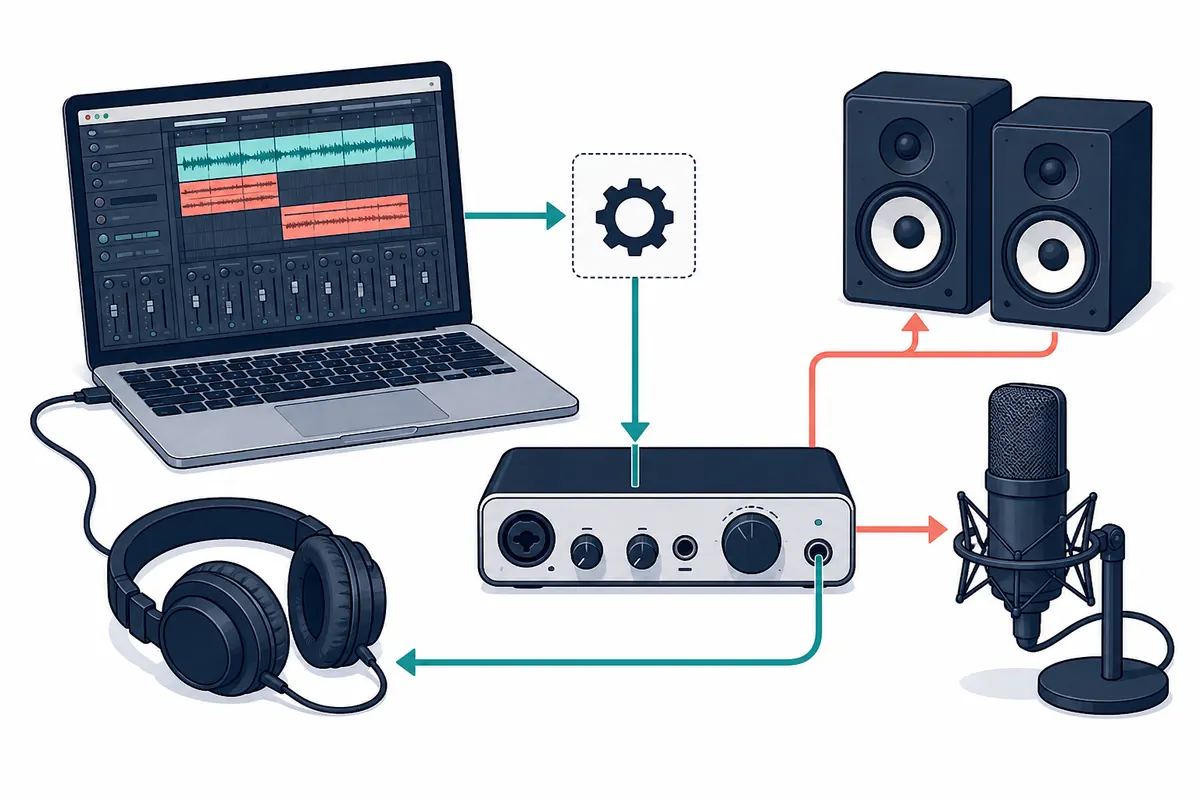
ASIO4ALL is an audio driver bridge. It presents selected Windows WDM audio endpoints to an ASIO-capable host, so a DAW can address a laptop microphone, USB microphone, line input, or interface without a manufacturer ASIO driver. It does not create a microphone, add preamp gain, or repair a faulty USB cable. The physical device and its Windows driver still determine which channels exist.
The first test should use one input and one output. Enabling every speaker, HDMI port, Bluetooth profile, microphone array, and interface channel makes the device list look complete but makes ownership and clock errors harder to diagnose. A small baseline also tells you whether the problem is capture, monitoring, or the DAW's own routing.
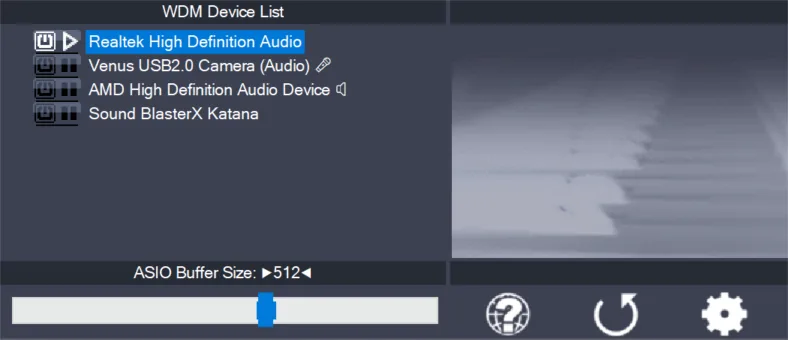
Select the microphone in the ASIO4ALL control panel
Close the DAW before changing the device list if it was already open. Launch the DAW, choose ASIO4ALL v2 in its audio preferences, and open the ASIO4ALL control panel. In simple view you may see a device group; in advanced view you can expand that group and select the individual WDM input. A blue power icon means an endpoint is enabled, while a red or unavailable state usually means Windows or another program currently owns it.
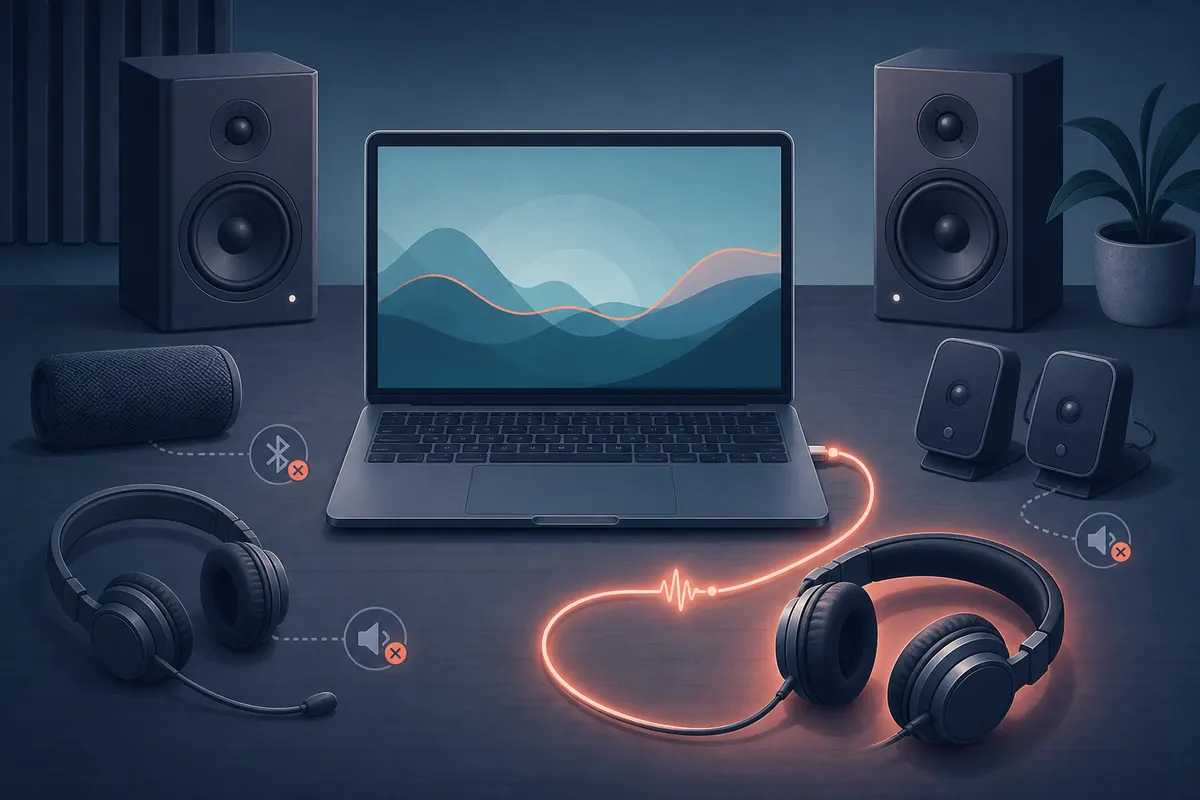
For the first capture, enable the microphone and one wired monitoring output. Turn off a second microphone, HDMI audio, Bluetooth hands-free audio, and unused interface channels. This is not a permanent recommendation; it is a controlled starting point. Once a clean take works, add another endpoint only when the session requires it and retest.
- Open the host audio settings
Choose ASIO as the audio system when the DAW offers a driver type, then select ASIO4ALL v2 and open its control panel.
- Expand the WDM device
Switch to advanced view when needed and expand the device that contains the microphone. Do not assume a device label exposes every input.
- Enable one input
Click the power icon beside the microphone or line endpoint. Leave other inputs off until the first recording succeeds.
- Enable one output
Turn on the speakers, headphones, or interface output that you will use to monitor. Avoid Bluetooth during the first test.
Route the input inside your DAW
Selecting a microphone in ASIO4ALL only exposes a channel. The DAW still needs an input range, bus, track source, record-arm state, and monitoring choice. Create a mono audio track for a mono microphone, choose the matching ASIO input port, arm the track, and speak while watching the meter. A moving meter proves that capture reaches the host; it does not prove that the signal is being monitored or recorded to the expected file.
Cubase users should confirm the input bus in Audio Connections after selecting ASIO4ALL. REAPER users should enable the input range in Preferences, choose the track's mono input, arm it, and enable monitoring when required. In Ableton Live, set the input and output device to ASIO4ALL, turn on the relevant input channel in the Input Config panel, then choose that channel on an audio track. FL Studio users should select the input from the mixer track after opening the ASIO4ALL panel.
| Symptom | Likely layer | Next check |
|---|---|---|
| No input meter | Windows permission, WDM endpoint, or input selection | Test the Windows input meter, then reselect the exact ASIO input port |
| Meter moves but recording is empty | Track is not armed or source is wrong | Arm the track and confirm the mono or stereo input assignment |
| Recording exists but you hear nothing | Monitoring or master output | Choose the working output and inspect track and master monitoring |
| Two copies of the voice | Direct monitoring plus software monitoring | Mute one monitoring path and keep one output destination |
| Input is unavailable | Another application or Windows format | Close browsers, chat apps, and other hosts before reopening the panel |
Check Windows permission, ownership, and format
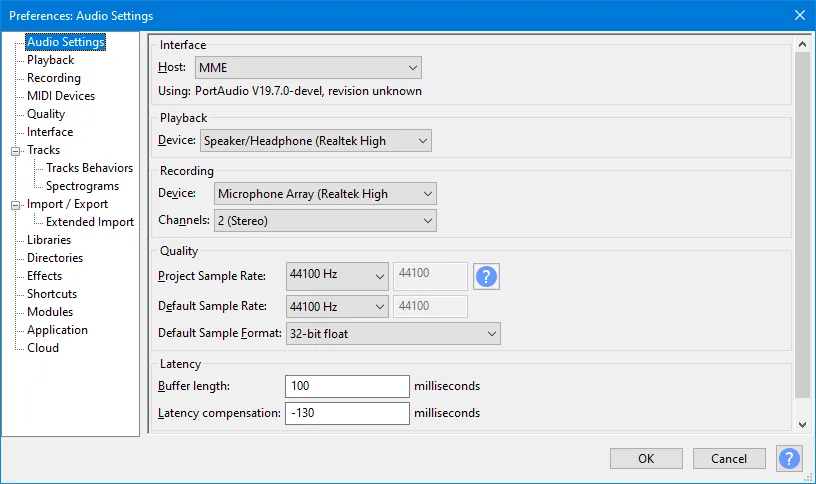
Windows can block desktop applications from using a microphone even when the endpoint appears in the ASIO4ALL list. In Windows 11 or Windows 10, open Privacy or Privacy & security, allow microphone access, and allow desktop applications to access the microphone. Confirm that the intended device is enabled in Sound settings and that its input level is not muted. Speak into the microphone and watch the Windows meter before returning to the DAW.
ASIO4ALL commonly needs exclusive access to an endpoint. Close a browser tab that played video, Discord, a meeting app, another DAW, or a voice utility before reopening the control panel. Do not troubleshoot with the same microphone open in two hosts. If the panel still reports an unavailable device, unplug and reconnect a USB microphone or interface, then restart the host. The official troubleshooting guidance also recommends checking for the Microsoft GS Wavetable Synth when it is enabled in a host's MIDI setup, because that is a separate audio and MIDI routing conflict.
- Test the Windows input meter before changing DAW settings.
- Close other audio applications and avoid sharing one endpoint during the first take.
- Use a wired microphone or interface while diagnosing Bluetooth latency and profile changes.
The official ASIO4ALL troubleshooting page explains host restarts, exclusive device ownership, and the separate Microsoft GS Wavetable Synth issue.
Fix silent, distorted, or doubled microphone recordings
A silent recording and a distorted recording need different actions. A flat DAW meter means the signal has not reached the host. A moving meter with a silent file points to track arming, file routing, or a monitoring misconception. A clipped waveform means the input gain is too high; changing the ASIO buffer will not repair clipping. Reduce the hardware or Windows input level, then make another short take.
Crackles and dropouts usually mean the system cannot finish the audio work inside the selected buffer, the USB path is unstable, or the sample rate is mismatched. Raise the buffer, bypass heavy plugins, connect the device directly instead of through an unpowered hub, and repeat the same ten-second test. Do not enable more endpoints while the baseline is unstable.
Know the MIDI boundary and test a stable take
ASIO4ALL carries audio input and output; it is not a MIDI driver. A MIDI keyboard can trigger a virtual instrument, but MIDI device selection belongs in the DAW or instrument settings. The instrument's audio return must still travel through the ASIO4ALL output. If MIDI notes arrive but no sound is produced, load a working instrument and check the selected audio output instead of enabling a second microphone.
When the input meter and a short recording are both correct, save the project with the working input and output names. Write down the sample rate, buffer, and whether direct monitoring is enabled. Then test a longer take and one playback pass. This record makes it easier to tell a later Windows update, USB reconnection, or DAW template change from a driver problem.
- Record ten seconds
Use one microphone, one armed track, and one monitoring output. Stop if the meter clips or the device becomes unavailable.
- Play the take back
Confirm that the file has a waveform and that the selected master output is the endpoint you actually hear.
- Save the baseline
Note the input name, output name, sample rate, buffer, and monitoring mode before adding plugins or extra devices.
ASIO4ALL microphone setup checklist
A dependable setup is one you can explain layer by layer. The microphone works in Windows, the correct WDM endpoint is enabled, the DAW sees the input, one track records a clean clip, and one output plays it back. Buffer and sample-rate choices come after those facts, not before them.
- Windows microphone permission is enabled for desktop applications.
- The intended microphone endpoint is powered on in ASIO4ALL.
- The DAW input bus or track uses the same channel that was enabled.
- One short recording has a visible waveform and no clipping.
- One monitoring path is active, with no duplicate echo.
ASIO4ALL microphone FAQ
Why does ASIO4ALL not see my microphone?
Check that Windows sees the microphone, desktop microphone permission is enabled, and the matching WDM input is powered on in the ASIO4ALL control panel. Reconnect USB devices and reopen the DAW after changing the device list.
Can ASIO4ALL use a USB microphone?
Yes, when Windows exposes the USB microphone as a WDM input. Enable only that input for the first test, create the correct mono track or input bus, and avoid sharing the device with another host.
Why does the microphone meter move but the recording is silent?
The signal reached the DAW, so check track arming, input assignment, file recording settings, and the master output. Monitoring and recording are separate paths.
How do I stop a doubled microphone sound?
Disable either direct hardware monitoring or software monitoring. Also check for a duplicated DAW, OBS, or chat source. Keep one microphone and one monitoring destination while testing.
What buffer should I use for an ASIO4ALL microphone setup?
Start around 256 samples. Raise the buffer when you hear clicks or dropouts, and lower it only after a clean recording works. Buffer size does not fix permissions or an unassigned input.
Does ASIO4ALL handle MIDI from a keyboard?
No. ASIO4ALL is the audio input and output layer. Configure MIDI input in the DAW or virtual instrument, then route the instrument's audio through the selected ASIO4ALL output.
Why is my microphone unavailable when a browser is open?
Another application may hold the endpoint or its format. Close browser audio, meeting apps, chat tools, and other hosts, then reopen the ASIO4ALL panel and test again.
Should I use a native interface driver instead of ASIO4ALL?
Use the manufacturer's native ASIO driver when it is current and stable. ASIO4ALL is a practical bridge for WDM devices without a reliable native ASIO option.