
FL Studio ASIO vs ASIO4ALL at a glance
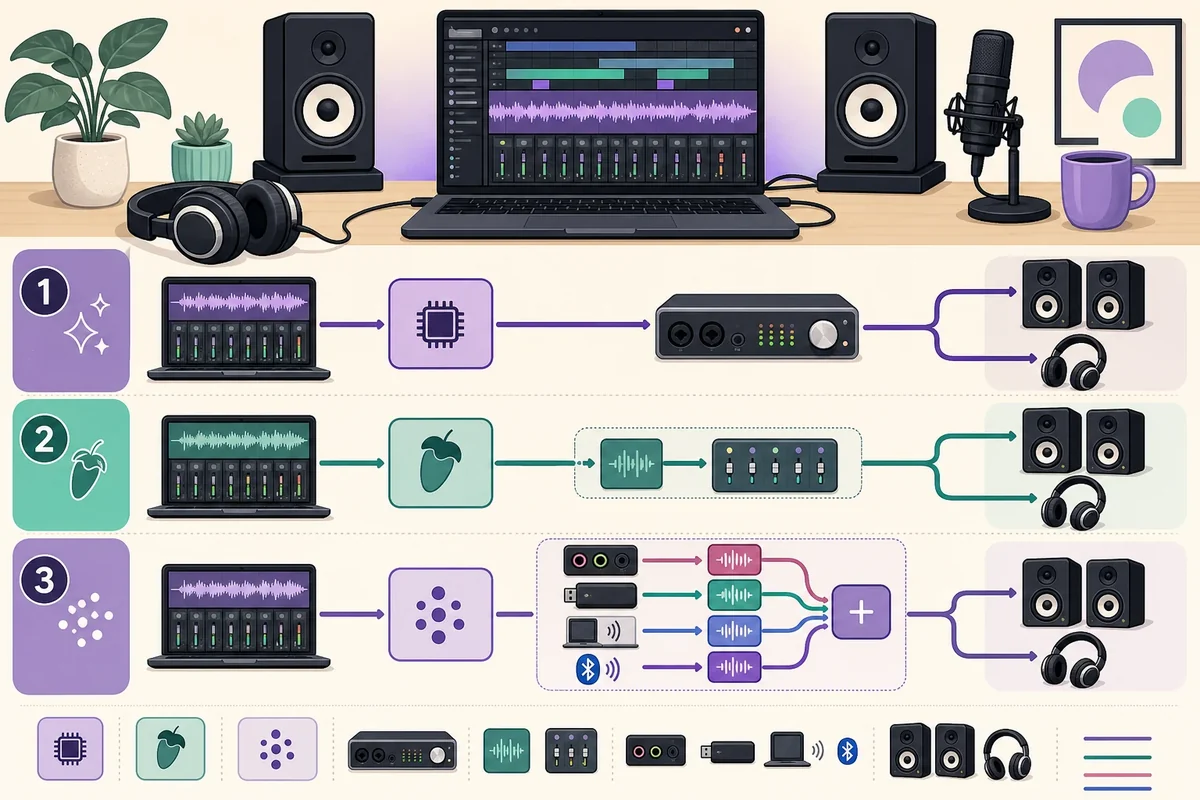
The short answer is not that one driver is universally better. FL Studio ASIO is the convenient first option inside FL Studio, while ASIO4ALL is a separate Windows ASIO layer that exposes compatible WDM audio devices through its own control panel. Both can be useful, but they make different tradeoffs around routing, device ownership, and setup complexity.
The table separates the decision from the download question. FL Studio ASIO is part of the FL Studio workflow; it should not be presented as a separate ASIO4ALL-style installer. ASIO4ALL is an independent project with its own official Windows installer and control panel.
| Question | FL Studio ASIO | ASIO4ALL |
|---|---|---|
| Best first test | Simple FL Studio playback and recording | A WDM device that needs explicit endpoint selection |
| Installation | Provided with the FL Studio installation | Separate Windows driver package |
| Device control | Uses FL Studio's audio settings | Uses an ASIO4ALL control panel with WDM endpoints |
| Multiple device paths | Keep the setup simple and predictable | Can expose more than one compatible Windows endpoint, with clock and stability tradeoffs |
| Native interface driver | Usually not the first choice when the manufacturer driver is available | Also should not replace a current, stable manufacturer ASIO driver |
| Typical reason to switch | The current project needs straightforward FL Studio audio | The needed input or output is not available through the simpler route |
When FL Studio ASIO is the better first choice
Choose FL Studio ASIO first when the goal is to open a project and hear it without building a complex device aggregate. It is a practical starting point for built-in laptop audio, ordinary Windows playback, and projects where you do not need a separate microphone and speaker family exposed through different WDM endpoints.
This option is also useful when you want FL Studio to coexist with everyday Windows audio. It does not guarantee that every application will share an interface in every configuration, but it usually keeps the first test easier to understand: select the driver, choose the input and output that FL Studio presents, and play a known project.
The official FL Studio audio settings manual is the right source for current menu names and FL Studio-specific behavior. Use it for the host settings, then use the device manufacturer's documentation for interface-specific controls.
- Start here when you use one main Windows playback device and one project at a time.
- Prefer it when you want a shorter troubleshooting path inside FL Studio.
- Keep the manufacturer's native ASIO driver ahead of both options when it is current and stable.
- Do not install a random file advertised as a standalone FL Studio ASIO download.
FL Studio ASIO menu names and availability can change with FL Studio releases. Verify the current host behavior in Image-Line's official manual rather than trusting a third-party installer page.
When ASIO4ALL makes sense
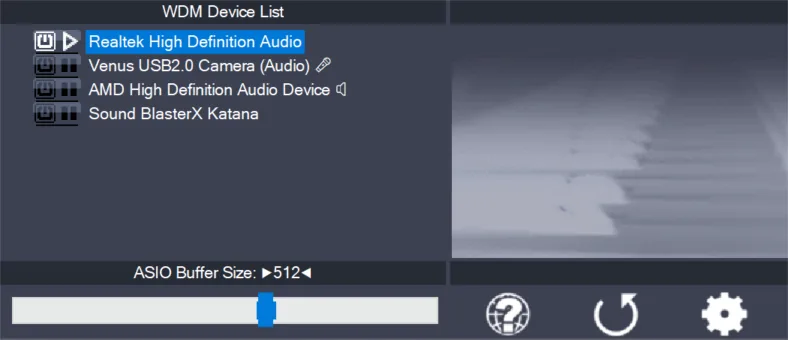
ASIO4ALL is useful when an application needs an ASIO path but the computer exposes only Windows WDM audio, or when the exact speaker, headphone, microphone, HDMI, or USB endpoint is not presented through the simpler driver choice. It gives you a separate control panel for enabling and disabling endpoints, which can make a difficult device list more explicit.
That flexibility has a cost. Separate devices can use different clocks, Bluetooth can add transport delay, and an endpoint may be unavailable because another application owns it. ASIO4ALL does not create hardware inputs, turn a consumer device into a professional interface, or guarantee lower latency on every computer.
Use the existing ASIO4ALL control-panel guide for endpoint icons, buffer changes, and advanced view. Use the Offline Settings guide when you need to inspect the panel before opening a DAW.
- Confirm the underlying Windows device
Check that the speaker, headphone, microphone, or USB device works in normal Windows audio before adding ASIO4ALL.
- Enable only the needed endpoints
Open the ASIO4ALL panel from FL Studio and start with one known output. Add an input only when the project needs recording.
- Test before aggregating devices
Play a simple project at a moderate buffer. Add a second device only when the one-device path is stable and the extra route has a clear purpose.
How to choose and test the driver in FL Studio
Treat the driver choice as a small experiment rather than a permanent performance claim. Write down the driver name, input, output, sample rate, and buffer that pass the test. This makes it easier to tell whether a later failure came from the driver, a Windows endpoint, a project, or a plugin.
The comparison is most useful when you test the same short project with the same physical headphones or speakers. Avoid changing the driver, sample rate, buffer, and device list at the same time; otherwise a successful result does not tell you which change helped.
- Open Audio settings
In FL Studio, open the audio settings and record the current driver selection before changing it.
- Test the simplest route
Try FL Studio ASIO or the manufacturer's native ASIO driver with one output and a known project. Watch the master meter and listen to the physical output.
- Test ASIO4ALL only when needed
Select ASIO4ALL v2, open its control panel, and enable the exact WDM endpoint required by the session.
- Record a short input
If recording matters, enable one microphone or line input and make a short take. Confirm that the input meter, track routing, and master output all work.
- Reopen and repeat
Close and reopen FL Studio, then repeat the short test. A driver choice that works only until the next launch is not a reliable baseline.
Buffer size, sample rate, and latency: what changes
A smaller buffer can reduce the time you wait to hear a monitored input, but it gives the computer less time to finish each audio block. A larger buffer can make a heavy project more stable while adding monitoring delay. Neither driver can remove latency created by plugins, USB transport, Bluetooth, device conversion, or the physical monitoring path.
Start at 256 samples with a matching project and Windows device sample rate. If playback is clean, test 128 or 64 for live monitoring only when the CPU and device remain stable. If clicks, crackles, or dropouts appear, raise the buffer before changing several other controls.
| Situation | Starting point | What to check next |
|---|---|---|
| First comparison | 256 samples, matching sample rate | Driver choice, one output, and master routing |
| Live vocal or instrument monitoring | 128 or 64 if clean | CPU load, direct monitoring, and input path |
| Large project with plugins | 512 or 1024 | Plugin look-ahead, underruns, and project load |
| Complete silence | Do not chase the smallest buffer | Driver selection, endpoint ownership, mute state, and master output |
| Bluetooth headphones | Use wired monitoring for diagnosis | Transport delay and Windows device mode |
Fix no sound, unavailable outputs, and pAudioCaptureClient-style errors
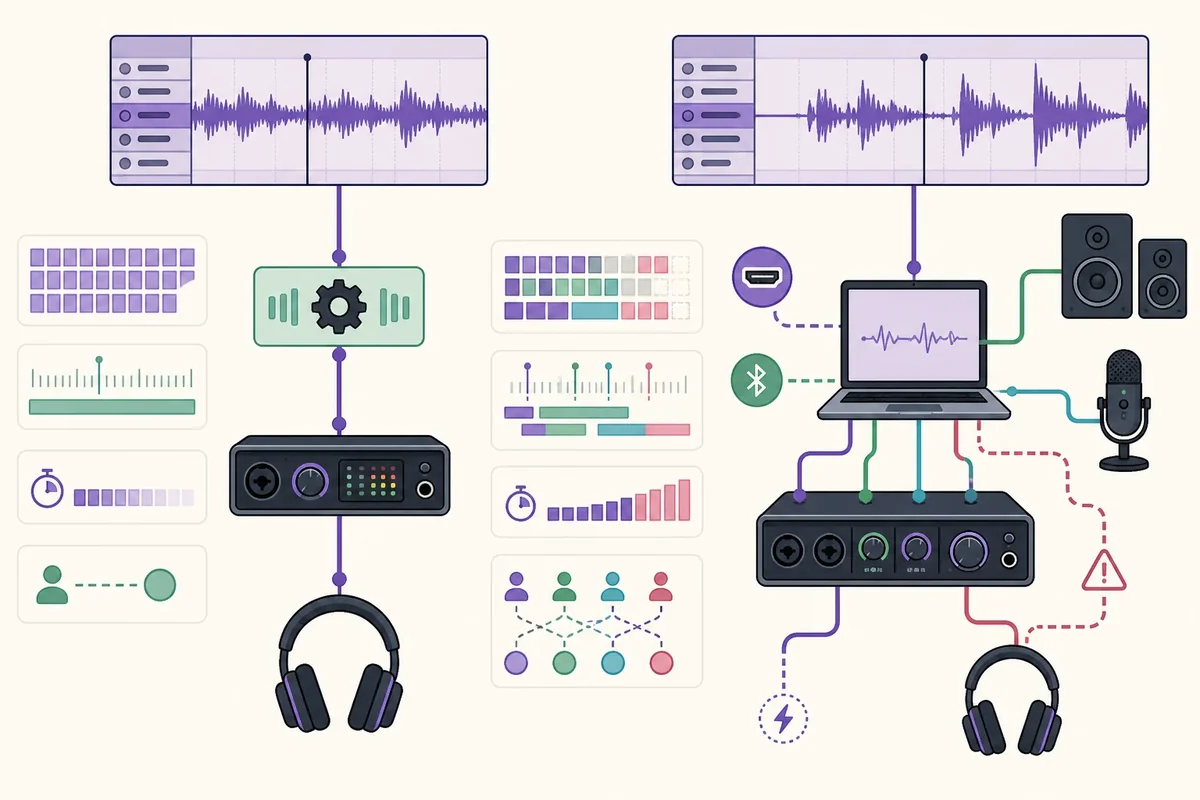
If FL Studio is silent after switching drivers, do not assume that ASIO4ALL needs to be reinstalled. First confirm that the selected driver is active, the master output points to the intended speakers or headphones, and the endpoint is not being used by a browser, meeting app, media player, or second DAW.
A pAudioCaptureClient-style message can lead users toward the wrong fix because it appears near audio capture or driver setup. Treat it as a host or device-path clue: check the input/output selection, close competing applications, reopen FL Studio, and test one route before changing the installer. If the error is specific to a current FL Studio build, use the official Image-Line support path for the exact message.
For a broader route check, use the site's ASIO4ALL no-sound guide. It separates endpoint ownership, sample-rate mismatch, buffer instability, DAW routing, and physical output problems instead of treating every silent session as a driver download problem.
- Select one driver and one output; do not enable every endpoint during the first test.
- Close browser, video-call, media-player, and other DAW windows that may own the device.
- Check the FL Studio master output and the physical headphone or speaker connection.
- Match the sample rate before testing resampling or advanced synchronization.
- If meters move but the room is silent, inspect the output route rather than only the buffer.
A driver can be loaded while the DAW still routes audio to the wrong endpoint. Treat meter activity and physical sound as two separate observations.
Safe download and version notes
FL Studio ASIO should not be downloaded from a page that pretends to host a separate ASIO4ALL installer. For ASIO4ALL, the current official release verified for this guide is version 2.22, published July 23, 2026. The stable executable is named ASIO4ALL_2_22.exe; the site links to the first-party file and does not host a mirror.
Before running any driver installer, check the source domain, filename, version, and Windows compatibility. Reject repackaged driver updaters, browser offers, fake Mac packages, and pages that promise zero latency. A native interface driver from the hardware maker remains the safer first choice when it is supported and stable.
Verify release facts at the official ASIO4ALL 2.22 release page. The direct file used by this site is the first-party ASIO4ALL_2_22.exe download.
Version check completed August 6, 2026: ASIO4ALL 2.22 remained the latest verified official release. The checked executable responded with HTTP 206 for a byte-range probe, MIME application/x-msdownload, and a complete length of 557,232 bytes.
FL Studio ASIO vs ASIO4ALL verification checklist
The best driver is the one that passes a repeatable test on the actual computer. Keep a short record of the selected driver, input, output, sample rate, buffer, and project. If a later project fails, restore the known-good baseline before changing advanced settings.
Do not turn the comparison into a promise that one option always sounds better or produces a particular millisecond result. Driver behavior depends on the hardware, Windows WDM path, interface firmware, CPU load, plugins, sample rate, and monitoring method.
- A current manufacturer ASIO driver was tested first when one exists.
- The FL Studio project uses one known output and a simple test signal.
- The input meter, master meter, and physical output were checked separately.
- The sample rate and buffer were recorded after a clean test.
- The driver still works after closing and reopening FL Studio.
- Any ASIO4ALL installer comes from the verified official 2.22 source.
FL Studio ASIO vs ASIO4ALL FAQ
Is FL Studio ASIO better than ASIO4ALL?
Neither is universally better. FL Studio ASIO is usually the simpler first test inside FL Studio, while ASIO4ALL is useful when you need explicit Windows WDM endpoint selection or a device path that the simpler option does not expose. Test a manufacturer native ASIO driver first when available.
Do I need ASIO4ALL v2 for FL Studio?
No. FL Studio can use its own FL Studio ASIO path or a hardware manufacturer's native ASIO driver. Install ASIO4ALL only when it solves a real endpoint, routing, or compatibility need on your Windows system.
Can I download FL Studio ASIO separately?
Do not treat FL Studio ASIO as an independent ASIO4ALL-style download. Use the FL Studio installation and official Image-Line documentation, and avoid third-party files that claim to be a standalone FL Studio ASIO installer.
Which driver gives the lowest latency?
There is no universal winner. A supported native interface driver often has the most direct hardware path, while FL Studio ASIO or ASIO4ALL may be practical for built-in or WDM-only devices. Compare the same project at a stable buffer instead of trusting a generic millisecond promise.
Why is FL Studio silent after I choose an ASIO driver?
The master output may point to the wrong endpoint, another application may own the device, the input/output may be disabled, or the sample rate may not match. Check one output, close competing audio apps, and inspect the master route before reinstalling a driver.
Can FL Studio ASIO or ASIO4ALL play YouTube audio at the same time?
It depends on the selected device, Windows sharing or exclusive-access behavior, and the host configuration. If everyday Windows audio disappears, treat it as an ownership or routing conflict and use a simple one-device test rather than enabling every endpoint.
What should I use with a Focusrite or other audio interface?
Start with the current native driver supplied by the interface manufacturer. Compare FL Studio ASIO or ASIO4ALL only when the native route does not expose the needed behavior or when the project has a specific WDM compatibility requirement.