
ASIO4ALL for Cubase at a glance
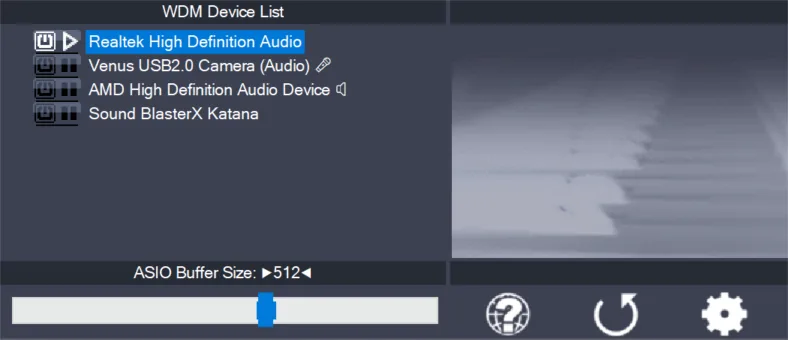
ASIO4ALL is a Windows compatibility layer, not a replacement for the hardware inside your computer. It gives an ASIO-capable host a way to reach compatible WDM audio endpoints. In Cubase, that means the driver choice, the ASIO4ALL endpoint list, and Cubase's input/output connections must all agree. A driver can appear selected while the project still points to an unavailable or disconnected output.
The best first configuration is not the one with every device enabled. Use the manufacturer driver when it is current and stable. If you need ASIO4ALL, begin with one playback endpoint and add an input only when you need to record. This makes it possible to tell whether a failure comes from Cubase routing, device ownership, sample-rate mismatch, or the driver layer.
| Decision | What it means in Cubase | First check |
|---|---|---|
| Current native interface driver | The direct path supplied for a supported audio interface | Install and select the vendor driver before testing a compatibility layer |
| ASIO4ALL v2 | A separate ASIO path that exposes selected Windows WDM endpoints | Open the ASIO4ALL panel and enable one known output |
| Input or output missing | The host may be using a different endpoint than the one you expect | Compare the ASIO4ALL device tree with Cubase Audio Connections |
| Meters move but no sound | Cubase is processing audio but the physical output route is wrong or unavailable | Check the Control Room or output bus, device ownership, and headphones |
| Several devices enabled | A combined route may introduce clock or format conflicts | Return to one output and one sample rate before expanding the route |
Where to select the ASIO driver in Cubase
Cubase editions and releases can use slightly different menu wording, but the audio-system decision is normally made in the host's Studio Setup or Audio System area. The official Steinberg documentation is the authority for the exact menu names in your edition. The goal is the same: select the driver that should own Cubase's audio engine, then open that driver's configuration rather than changing unrelated Windows playback settings first.
ASIO4ALL does not become the active Cubase driver merely because it is installed. Cubase must select ASIO4ALL v2, and the ASIO4ALL panel must expose a working WDM endpoint. If the driver list does not refresh, close other audio hosts and reopen Cubase before assuming that the installer failed.
- Open the audio-system settings
Open Cubase's Studio Setup or Audio System page and record the driver currently selected. Avoid changing the sample rate and buffer at the same time.
- Select ASIO4ALL v2
Choose ASIO4ALL v2 only when it matches the device problem you are solving. If a supported interface has a current native ASIO driver, test that path first.
- Open the ASIO configuration
Use the driver's Control Panel button to open ASIO4ALL. Start in the simplest view and enable one speaker, headphone, or interface output.
- Reopen the host when needed
Close and reopen Cubase after a driver change if the device list or input/output ports look stale. A route that works only until the next launch is not a reliable baseline.
For current Cubase menu names, use Steinberg's official help documentation. This page keeps the workflow version-agnostic instead of promising that every Cubase edition shows identical labels.
Connect the right inputs and outputs
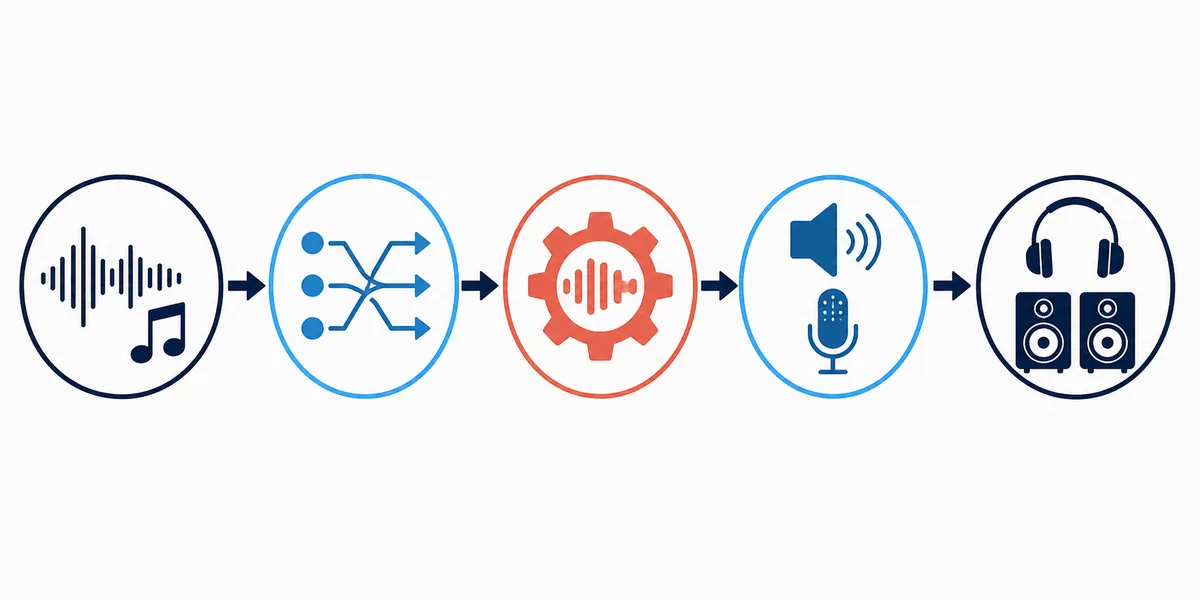
Selecting ASIO4ALL v2 is only the first half of the route. Cubase still needs an input bus for recording and an output bus for playback. Open Audio Connections, commonly available from the F4 shortcut, and confirm that the bus is assigned to the physical port you enabled in ASIO4ALL. If the output is not connected, a correct driver selection can still produce silence.
Use names you can verify in Windows and in the ASIO4ALL device tree. A laptop may expose speakers, a headphone jack, HDMI, a microphone array, and Bluetooth profiles under similar names. Turn off unrelated endpoints during diagnosis. Add a second device only after one playback path and one recording path work independently.
- Enable only the needed endpoint
In ASIO4ALL, enable the speaker or headphone output you intend to hear. Enable a microphone or line input only when the project needs recording.
- Build the output bus
In Cubase Audio Connections, create or inspect the stereo output bus and assign it to the visible ASIO4ALL output ports.
- Build the input bus
For recording, add a mono or stereo input bus and select the exact ASIO4ALL input port. Arm a short test track rather than a full session.
- Compare meters with physical sound
Watch the track and master meters, then listen through the same headphones or speakers shown in the output bus. These are separate checks.
| Cubase task | Minimum route | What to verify |
|---|---|---|
| Playback | One stereo output bus | The bus points to the headphones or speakers that are actually connected |
| Microphone recording | One mono input bus | The input port is enabled in ASIO4ALL and selected on the audio track |
| Instrument or line input | One input pair or mono port | The physical input meter responds before adding monitoring effects |
| Different input and output devices | One selected input plus one selected output | Both endpoints share a compatible format and the combined route stays stable |
| Output not connected | No usable output bus yet | Reconnect the bus after checking the ASIO4ALL power icon and device ownership |
Fix Cubase driver changes, disconnected outputs, and no sound
When Cubase cannot change the ASIO driver, first close other DAWs, browsers playing audio, meeting tools, media players, and control panels that may own the device. Reopen Cubase and try the driver selection again. Do not install a second copy of ASIO4ALL just because a device is temporarily unavailable; duplicate installers do not release an endpoint owned by another application.
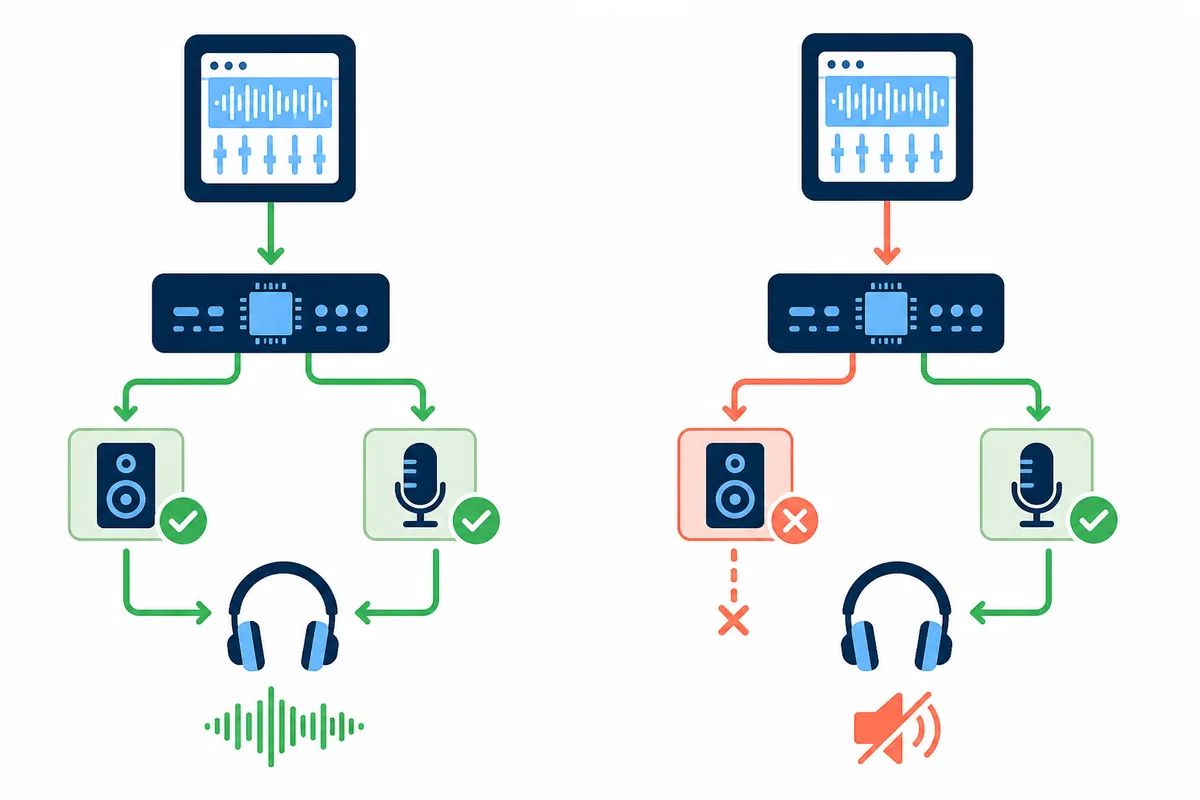
When an output is shown as not connected, compare three layers in order: the endpoint power state in ASIO4ALL, the port assignment in Cubase Audio Connections, and the physical cable or headphones. If meters move but the room is silent, check the master or Control Room output before lowering the buffer. If the input meter is silent, check the input bus and Windows microphone permissions separately.
The exact wording can differ between Cubase editions, including Cubase 12 Artist or newer releases. Keep the fix tied to the symptom rather than to a guessed version-specific installer. If the issue remains after a one-output test, use the site's broader ASIO4ALL no-sound recovery guide to separate endpoint ownership, sample-rate mismatch, buffer instability, and physical-output problems.
- Select one driver, one output, and one short project before enabling additional endpoints.
- Close competing audio applications and reopen Cubase when the driver list or ports are stale.
- Check the ASIO4ALL power icon beside the exact WDM endpoint, not only the parent device name.
- Inspect Audio Connections and the master or Control Room output when meters move without physical sound.
- Match the project sample rate with the device before trying resampling or advanced synchronization.
- Return to the last known-good driver and route before changing several settings at once.
Buffer, sample rate, ASIO-Guard, and latency
A smaller ASIO buffer can reduce monitoring delay, but it also gives the computer less time to finish each audio block. Start with 256 samples and a matching project/device sample rate. If the test is clean, try 128 or 64 for live monitoring only when the computer remains stable. For a heavy project, 512 or 1024 can be a more useful diagnostic baseline than chasing the smallest number.
ASIO-Guard, plugin look-ahead, oversampling, USB transport, Bluetooth, and the physical monitoring path can all add delay outside the ASIO4ALL buffer. Do not present ASIO4ALL as a guaranteed low-latency solution. The meaningful test is repeatable playback and recording with the same project, device, sample rate, and buffer.
| Situation | Starting point | Next check |
|---|---|---|
| First Cubase test | 256 samples, matching sample rate | One output bus, clean playback, no endpoint warning |
| Live monitoring | 128 or 64 only if clean | Input meter, monitoring path, CPU load, and crackles |
| Large project | 512 or 1024 | ASIO-Guard, plugin load, underruns, and project complexity |
| Clicks or dropouts | Raise the buffer one step | Keep the route stable before enabling more devices |
| Bluetooth diagnosis | Use wired headphones | Separate wireless transport delay from the driver problem |
A buffer setting is a starting point, not a measured promise. Record the value that passes the actual Cubase playback and recording test.
ASIO4ALL 2.22 download and version boundary
ASIO4ALL 2.22 is the current official release verified for this guide on August 10, 2026. The official release and version pages identify the Windows package as 2.22, and the stable file is named ASIO4ALL_2_22.exe. This Cubase page does not host a mirror and does not provide a Cubase or Steinberg installer.
The official file was checked with a byte-range request: HTTP 206, MIME application/x-msdownload, a complete length of 557,232 bytes, and a PE MZ header. Use the verified first-party source instead of a repackaged driver updater, a fake Mac package, or a page promising zero latency. If Cubase already works with a current interface driver, do not replace it just to install ASIO4ALL.
For release facts, see the official ASIO4ALL 2.22 release page. For the site's current download boundary, use the ASIO4ALL installation guide.
Freshness gate completed August 10, 2026. ASIO4ALL 2.22 remained current; the stable official executable resolved without a redirect and matched the recorded 557,232-byte length.
ASIO4ALL for Cubase verification checklist
A good Cubase driver choice is the one that survives a repeatable test on the actual computer. Record the driver, endpoint, input bus, output bus, sample rate, buffer, and whether the route still works after Cubase is reopened.
Do not treat a moving meter as proof that the physical output works, and do not treat a low buffer number as proof of lower total latency. The host, device, Windows endpoint, plugins, CPU load, and monitoring method all affect the result.
- A current manufacturer ASIO driver was tested first when one exists.
- ASIO4ALL v2 was selected only for a real WDM routing or compatibility need.
- One known output was enabled before any second device was added.
- Cubase Audio Connections points to the same physical output shown in ASIO4ALL.
- A short playback test and, when needed, a short input recording both work.
- Sample rate and buffer were recorded after a clean test.
- Cubase was closed and reopened without losing the route.
- Any ASIO4ALL installer came from the verified official 2.22 source.
ASIO4ALL for Cubase FAQ
Do I need ASIO4ALL to use Cubase?
No. If your audio interface has a current supported native ASIO driver, try that first. ASIO4ALL is useful when Cubase needs a Windows WDM endpoint that the native route does not expose or when no suitable native driver is available.
Where do I select ASIO4ALL in Cubase?
Open Cubase's Studio Setup or Audio System area, choose ASIO4ALL v2 as the ASIO driver, and then open its Control Panel to enable the required WDM endpoints. Menu names can vary by Cubase edition and release.
Why can I not change the ASIO driver in Cubase?
Another audio application may own the device, the driver list may be stale, or Cubase may need to be reopened after a change. Close other DAWs, browsers, meeting tools, and media players, then reopen Cubase and try the selection again.
Why does Cubase say the output is not connected?
The ASIO4ALL endpoint may be disabled or unavailable, or Cubase Audio Connections may point to a different port. Enable the exact output in ASIO4ALL, reconnect the output bus, and check the physical headphones or speakers.
Does Cubase 15 or Cubase 12 Artist need a different ASIO4ALL installer?
Do not choose an installer based on a search-result version phrase. The site verified ASIO4ALL 2.22 as the current official Windows release; Cubase edition-specific menu behavior should be checked in Steinberg's documentation.
What buffer should I use with ASIO4ALL in Cubase?
Start around 256 samples with a matching sample rate. Try a smaller buffer only after clean playback, and raise it for clicks, dropouts, or heavy projects. Plugins, ASIO-Guard, USB transport, and Bluetooth can add latency beyond the buffer.
Can I use browser audio at the same time as Cubase?
It depends on Windows sharing, exclusive access, the selected endpoint, and the driver path. If browser audio disappears, treat it as a device-ownership or routing conflict and return to a one-output Cubase test.
Should I use a Steinberg or interface driver instead?
Use the current native driver supplied for your interface when it is supported and stable. Compare ASIO4ALL only when the native path does not provide the required WDM device or routing behavior.