How REW, ASIO4ALL, and Windows fit together
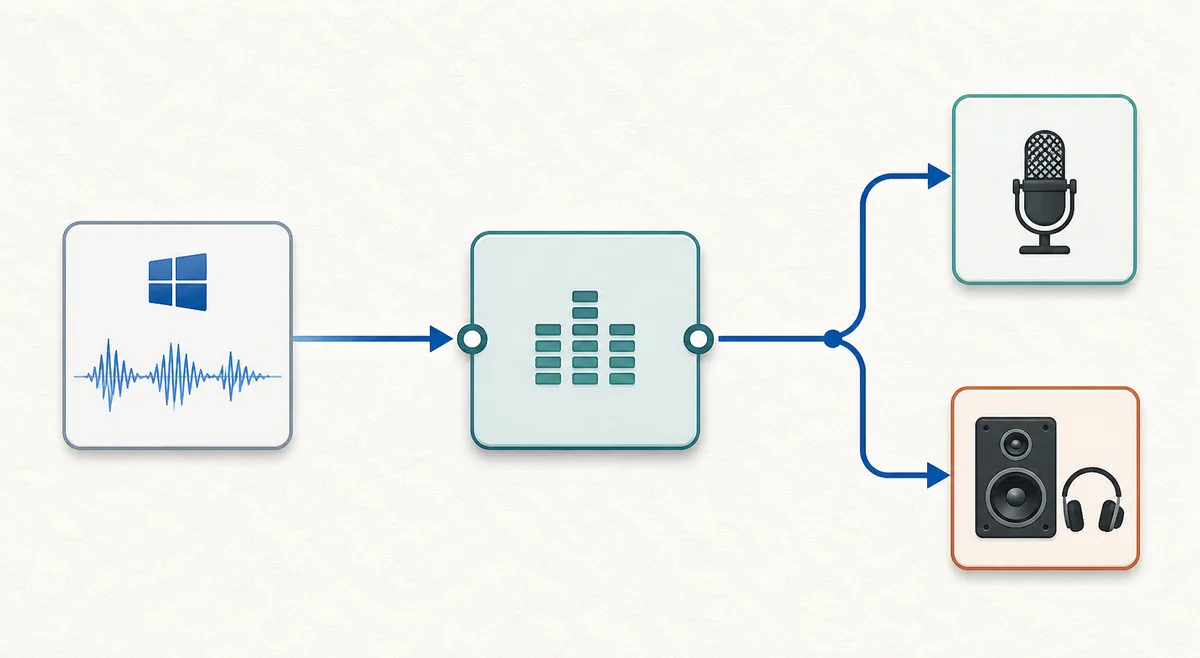
REW generates a test signal, sends it through the selected output, and captures the returned microphone or line input. ASIO4ALL sits between REW's ASIO request and one or more Windows WDM endpoints. It can make a built-in output, USB microphone, HDMI path, or another WDM device visible to an ASIO-capable application, but it cannot repair a missing hardware driver or add a physical input that the device does not expose.
A clean first measurement has four matching layers: the REW driver choice, the ASIO4ALL endpoint state, the REW input/output channel selection, and the physical cable, microphone, speaker, or processor being measured. A moving REW level meter proves that a signal reached an input; it does not by itself prove that the intended speaker or channel was excited.
| Layer | What it controls | First check |
|---|---|---|
| REW Soundcard Preferences | Driver type, ASIO device, input/output channels, and sample-rate choices | Confirm REW is using ASIO and the intended ASIO4ALL device |
| ASIO4ALL panel | Which Windows WDM endpoints are enabled or unavailable | Enable one known output and the required measurement input |
| Windows audio device | The underlying microphone, line input, speaker, HDMI, or USB endpoint | Check that the endpoint exists and is not owned by another application |
| Measurement path | The physical signal path and its calibration files | Confirm the cable, microphone position, input calibration, and output level |
| REW measurement dialog | Sweep output, input channel, timing reference, level check, and capture | Use Check Levels before pressing Start |
Configure ASIO4ALL in REW Soundcard Preferences
The exact labels can vary slightly by REW release, but the decision belongs in the Soundcard Preferences panel. On Windows, select the ASIO driver type and then choose ASIO4ALL v2. REW's ASIO path normally uses one ASIO device for input and output; ASIO4ALL can wrap separate WDM endpoints, but that flexibility also makes device ownership, clocking, and sample-rate conflicts more likely.
Keep the first route deliberately narrow. If you are measuring a speaker with a calibrated microphone, enable the intended playback endpoint and microphone input only. Do not activate every laptop speaker, HDMI output, Bluetooth profile, and microphone array before you know which channel is producing and capturing the test signal.
- Open Soundcard Preferences
Open REW's Preferences and select Soundcard. Record the current driver and sample rate before changing anything so you have a known rollback point.
- Choose the ASIO driver path
Select ASIO as the Windows driver type, then choose ASIO4ALL v2 from the device list. If a supported interface has a current native ASIO driver, test that driver first.
- Open the ASIO4ALL panel
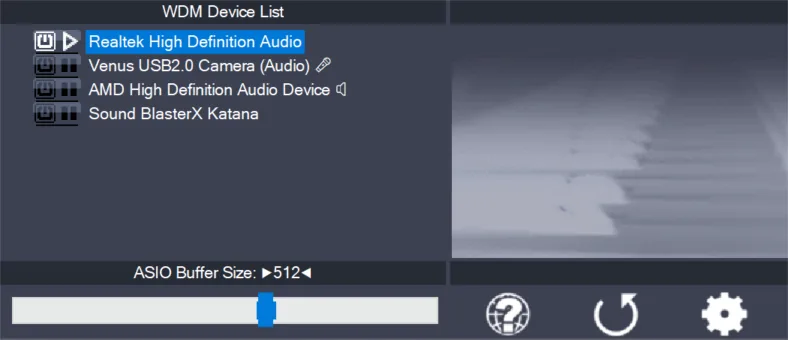
Use the driver configuration button to open ASIO4ALL. Enable the exact WDM output and input required for the measurement, and leave unrelated endpoints disabled during diagnosis.
- Match the sample rate
Choose a rate offered by both the device and REW, then make the Windows endpoint and project use the same rate where possible. If a device disappears from a list, try the rate it actually reports instead of forcing a value.
- Select channels and save the baseline
Choose the input and output channels in REW, note the microphone calibration file and output calibration if used, and save a short description of the route before testing levels.
REW's official Soundcard Preferences documentation explains the Windows ASIO, sample-rate, input, output, and calibration controls. ASIO4ALL's official manual explains how to enable WDM endpoints in its panel.
Run a first level check and measurement
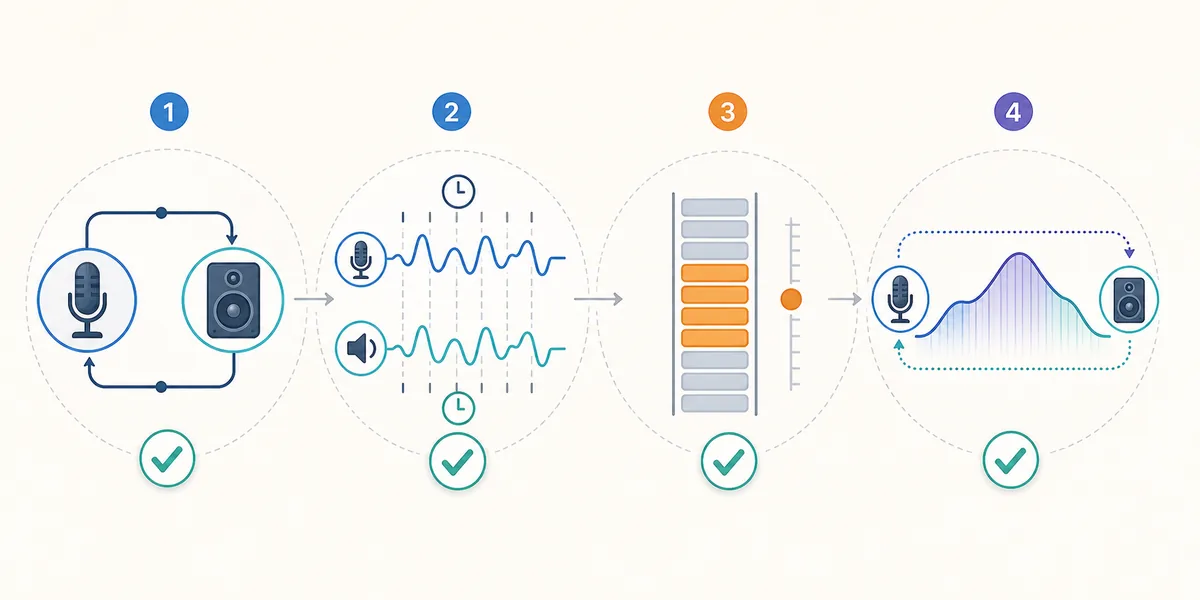
Before a room sweep, use REW's Check Levels function or another short, controlled signal to confirm the complete path. Listen at a safe level, watch the input meter, and verify that the expected speaker or loopback channel responds. A silent output, a clipped input, or an unexpectedly active channel is a routing problem to fix before taking measurements.
For a normal acoustic measurement, load the correct microphone calibration file, place the microphone consistently, select the intended output channel, and start with a conservative sweep level. If you use a timing reference or loopback input, select and verify that reference separately; it is not automatically created by installing ASIO4ALL.
- Play the level check
Run Check Levels for a few seconds and confirm the expected input responds. Stop immediately if the level is unsafe or another output is active.
- Confirm the channel identity
Use a low-level signal and verify the physical speaker, processor input, or loopback connection that responds. Do not infer channel identity from a similar device name alone.
- Make one short sweep
Keep the same input, output, rate, microphone position, and sweep level for the first measurement. Record those settings with the result.
- Repeat before expanding
Repeat the measurement once before enabling a second WDM device or changing synchronization. Repeatability is more useful than a larger endpoint list.
| Check | Expected result | If it fails |
|---|---|---|
| ASIO4ALL endpoint | The intended output and input show as available | Close competing audio applications and inspect the endpoint power or unavailable state |
| Output test | The selected speaker, processor, or loopback input receives the test signal | Check REW's output channel, physical connection, and the master volume |
| Input meter | The calibrated microphone or line input shows a stable response | Check the input channel, Windows permission, microphone connection, and input gain |
| Check Levels | The signal is measurable without clipping or an excessively low level | Lower the level if clipping; raise it carefully if the input is too quiet |
| Short sweep | A repeatable measurement completes on the intended channel | Return to one output, one input, one sample rate, and a moderate buffer |
Fix no signal, missing channels, and unstable sweeps
If REW cannot open ASIO4ALL or a device is unavailable, close DAWs, browsers playing audio, meeting tools, media players, and control panels that may own the WDM endpoint. Reopen REW, select the same driver again, and begin with one output and one input. Reinstalling the driver is not the first fix for an endpoint that another process still owns.
If the device appears but the channel is missing, check the selected sample rate and the ASIO4ALL endpoint tree. REW may only list channels that the current ASIO device reports for that format. Return to the device's supported rate, disable unrelated endpoints, and reopen the Soundcard Preferences panel before changing the measurement itself.
If the sweep starts but is noisy or drops out, raise the ASIO4ALL buffer one step, reduce the number of active WDM endpoints, and repeat the same sweep. Bluetooth adds transport delay and can add format or ownership problems, so use a wired path while diagnosing measurement routing.
- No driver or device: close other audio applications, reopen REW, and confirm ASIO4ALL v2 is selected.
- Red or unavailable endpoint: inspect the exact WDM child device, not only its parent name.
- Input missing: match the sample rate and confirm Windows microphone permission and the correct ASIO channel.
- Output silent: verify the REW output channel, physical cable, processor input, and volume independently.
- Clipping: reduce sweep level or input gain and repeat the level check before measuring.
- Crackles or dropouts: raise the buffer, disable extra endpoints, and test the same route again.
- Unexpected channel: disable mixing, virtual devices, and unrelated HDMI or Bluetooth endpoints while identifying the path.
For a broader host-independent recovery order, use the site's ASIO4ALL no-sound guide. It covers endpoint ownership, routing, sample-rate mismatch, buffer stability, and physical-output checks without duplicating this REW-specific workflow.
When a native ASIO driver or another REW driver is better
ASIO4ALL is most useful when REW needs a Windows WDM endpoint that a native driver does not expose, such as a built-in audio path, a particular HDMI route, or a device without a suitable ASIO driver. It is not automatically better for a supported USB interface. A current manufacturer ASIO driver usually gives clearer device ownership, channel naming, clocking, and hardware-specific controls.
REW also offers Java and other platform-specific driver paths. A USB measurement microphone or a simple stereo output may be easier to configure through the driver that exposes the exact devices you need. Choose the path that produces a repeatable, calibrated measurement, then document the driver, device, channels, sample rate, level, and microphone calibration used for the result.
| Situation | Best first test | Why |
|---|---|---|
| Supported audio interface with a current vendor driver | Native manufacturer ASIO | Usually provides the clearest hardware route and clock ownership |
| Built-in, HDMI, or WDM-only endpoint needed by REW | ASIO4ALL with one minimal endpoint set | Can expose WDM devices to an ASIO-capable host |
| USB microphone plus ordinary Windows playback | The REW driver path that exposes both devices reliably | Avoids adding a wrapper when the native device lists already work |
| Several unrelated devices combined | Test one device first, then add the second only if necessary | Independent clocks and ownership can make measurements less stable |
| Bluetooth listening or monitoring | Use wired audio for the diagnostic baseline | Separates wireless transport delay from the ASIO routing problem |
REW with ASIO4ALL verification checklist
A useful REW result is not defined by selecting ASIO4ALL alone. It is defined by a known signal path that repeats: the same driver, endpoint, channel, sample rate, level, microphone calibration, and physical measurement position produce comparable results.
Keep the first route small and write down the settings with the measurement. If a later result changes, you can identify whether the change came from the driver, endpoint ownership, sample rate, buffer, calibration, room position, or the device under test.
- A current native ASIO driver was tested first when the interface provides one.
- REW Soundcard Preferences uses ASIO4ALL v2 only for a clear WDM routing or compatibility need.
- Only the intended WDM input and output are enabled during the first test.
- The REW sample rate and the device or Windows endpoint rate are compatible.
- Check Levels passes without clipping, excessive noise, or an unexpected active channel.
- The microphone or line-input calibration file is attached to the intended input.
- A short sweep repeats on the same physical channel before more endpoints are enabled.
- The result records the driver, device, channels, sample rate, buffer, level, and measurement position.
How to use ASIO4ALL in REW FAQ
Do I need ASIO4ALL to use REW?
No. If your audio interface has a stable supported native ASIO driver, test that first. ASIO4ALL is useful when REW needs a Windows WDM input or output that the native route does not expose, or when you need a compatible bridge for a particular device.
Where do I select ASIO4ALL in REW?
Open REW Preferences, choose Soundcard, select the Windows ASIO driver type, and then choose ASIO4ALL v2. Open the ASIO4ALL configuration panel to enable the required WDM endpoints, then choose the input and output channels in REW.
Can REW use a different input and output with ASIO4ALL?
ASIO4ALL can wrap WDM devices and may expose separate input and output endpoints. Whether the combination is stable depends on the devices, clocks, sample rates, and Windows ownership. Test one route at a time and prefer a single native interface when it meets the measurement need.
Why is my microphone or output missing in REW?
The endpoint may be disabled in ASIO4ALL, owned by another application, unavailable at the selected sample rate, or represented by a different channel name. Close competing audio software, check the exact WDM child endpoint, and try a rate reported by the device.
What sample rate should I use with ASIO4ALL in REW?
Use a rate supported by the selected device and REW, and keep the Windows endpoint at the same rate when possible to avoid unnecessary resampling. There is no universal best rate for every microphone, interface, or HDMI path; record the rate with the measurement.
How do I test ASIO4ALL before running a REW sweep?
Use Check Levels or a short controlled signal, verify the intended physical output and input meter, and make one short sweep before adding endpoints or changing synchronization. Stop if the level clips or the wrong channel responds.
Should I use Bluetooth with ASIO4ALL for room measurements?
Use a wired output for the diagnostic baseline. Bluetooth can add transport delay, format conversion, and device-ownership variables that make an ASIO routing problem harder to isolate. It may be usable for a specific non-critical test, but it is a poor first reference path.
Does ASIO4ALL calibrate my REW microphone?
No. ASIO4ALL exposes the Windows endpoint; it does not replace REW's input calibration, microphone calibration file, output calibration, level check, or physical measurement procedure. Apply the correct calibration data in REW and verify the complete path.