
Understanding How ASIO4ALL Bridges Pro Tools and Windows Audio
Avid Pro Tools relies on native ASIO architecture on Windows systems for low-latency tracking, input monitoring, and high-track-count processing. Unlike casual media applications that interact with Windows Core Audio via shared WASAPI or DirectSound, Pro Tools demands exclusive, direct communication with audio hardware buffers to maintain sample-accurate sync.
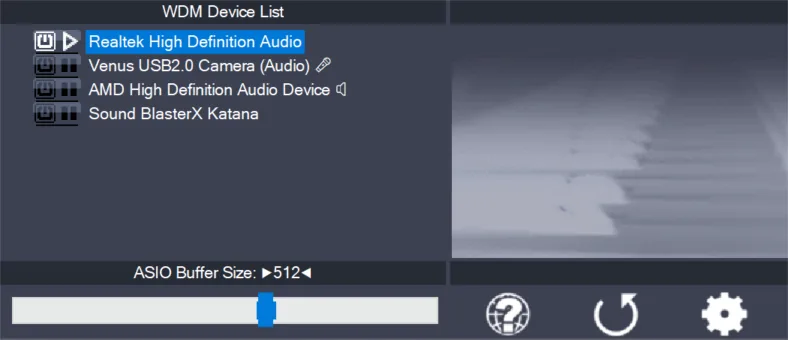
When an audio interface lacks a dedicated 64-bit manufacturer ASIO driver—or when you need to record on a laptop using built-in headphone jacks and integrated Realtek audio—ASIO4ALL acts as a translation layer. It wraps standard Windows WDM (Kernel Streaming) driver endpoints and exposes them to Pro Tools as a unified, low-latency ASIO interface. Operating in kernel mode minimizes system overhead and provides adjustable buffer depths directly accessible from the Windows notification taskbar or within DAW preferences.
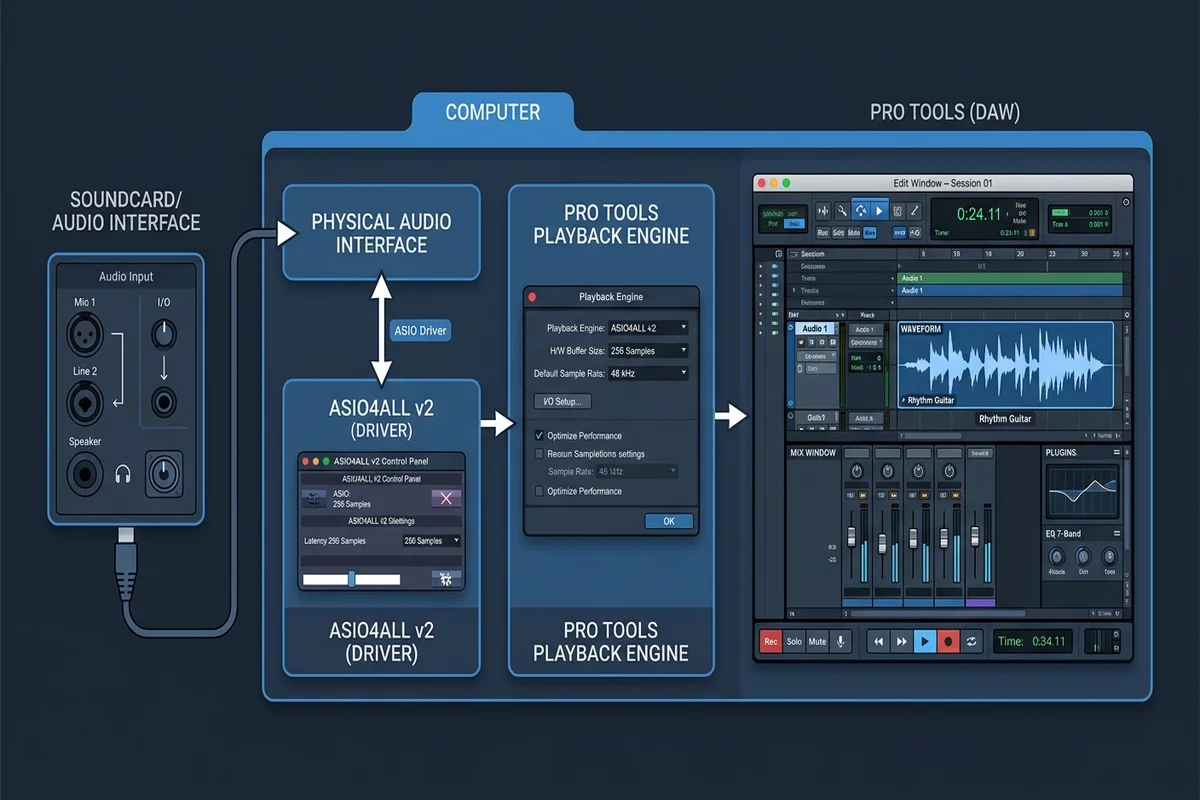
However, because Pro Tools assumes total ownership over the chosen audio hardware, routing collisions frequently occur if desktop applications, streaming tools, or browser tabs stream audio at conflicting clock rates. Successful setup requires understanding the signal path: your physical hardware connects to the Windows driver, ASIO4ALL aggregates and exposes active endpoints, and the Pro Tools Playback Engine routes virtual tracks and master faders to those endpoints.
| Audio Pipeline Layer | Core Function in Pipeline | Critical Diagnostic Check |
|---|---|---|
| Windows Endpoints | Underlying WDM audio hardware (Realtek, USB mic, headphones) | Confirm Default Format matches 24-bit 44.1 kHz or 48 kHz |
| ASIO4ALL Panel | Translates WDM streams into an ASIO-compliant driver container | Verify blue play icon indicator; resolve yellow exclamation / red X |
| Playback Engine | Host DAW engine managing project sample clock and DSP processing | Hold 'N' key during boot to select ASIO4ALL v2 if session freezes |
| Pro Tools I/O | Maps session tracks to physical driver input and output channels | Click 'Default' in Input and Output tabs to restore mapped buses |
| Exclusive Mode | Grants Pro Tools exclusive low-latency hardware control | Disable Windows shared audio enhancements and app exclusive lockouts |
Step-by-Step Configuration in Pro Tools
Configuring ASIO4ALL in Pro Tools requires deliberate staging to avoid device lockouts. When Pro Tools boots, it immediately polls audio drivers registered with the system. If an existing audio device fails to respond at the expected sampling rate, Pro Tools can hang during the startup splash screen or display an immediate DAE error.
Follow these structured configuration steps to establish a clean, stable connection between Pro Tools and ASIO4ALL:
- Step 1: Release Conflicting Windows Audio Locks
Before launching Pro Tools, close web browsers, Spotify, Discord, OBS, and running games. In Windows Sound Settings > More sound settings, open Properties for your playback and recording devices, switch to Advanced, and ensure Default Format matches your planned session (24-bit, 48000 Hz or 44100 Hz).
- Step 2: Launch Pro Tools with the Hardware Override Key
Launch Pro Tools and immediately hold down the 'N' key on your keyboard until the splash screen finishes loading. This forces Pro Tools to display the Playback Engine dialog prior to opening any session templates.
- Step 3: Select ASIO4ALL v2 in Playback Engine
In the Playback Engine dropdown menu at the top of the dialog, select 'ASIO4ALL v2'. If a warning prompt appears stating that the current playback engine does not support the current sample rate, confirm the change to re-initialize the audio subsystem.
- Step 4: Establish Initial Hardware Buffer Size
Select an initial H/W Buffer Size of 256 or 512 samples. For low-latency live tracking, 128 or 256 samples is recommended. For dense mixing sessions with heavy plugins, choose 512 or 1024 samples for adequate CPU headroom.
- Step 5: Verify Endpoint Activation in ASIO4ALL Tray Icon
Locate the green ASIO4ALL icon in the Windows taskbar system notification tray. Click it to open the control panel. Confirm that your intended playback endpoint displays an active blue status icon. Toggle off unused webcams and HDMI outputs.
- Step 6: Reset Pro Tools I/O Routing Buses
Open your session, navigate to Setup > I/O, and switch through the Input, Output, and Bus tabs. In each tab, select all paths, click 'Delete Path', and click 'Default' to rebuild internal bus paths to active ASIO4ALL channels.
If you need to install or update your driver before following these steps, read our complete ASIO4ALL installation guide and verify version history in the version archive.
Buffer Size, Latency, and Sample Rate Clock Matching
In digital audio workstations like Pro Tools, audio latency represents the time elapsed from physical audio generation to processed acoustic output through studio monitors or headphones. The duration of this delay depends on the relationship between your buffer size (in samples) and session sample rate (in Hertz).
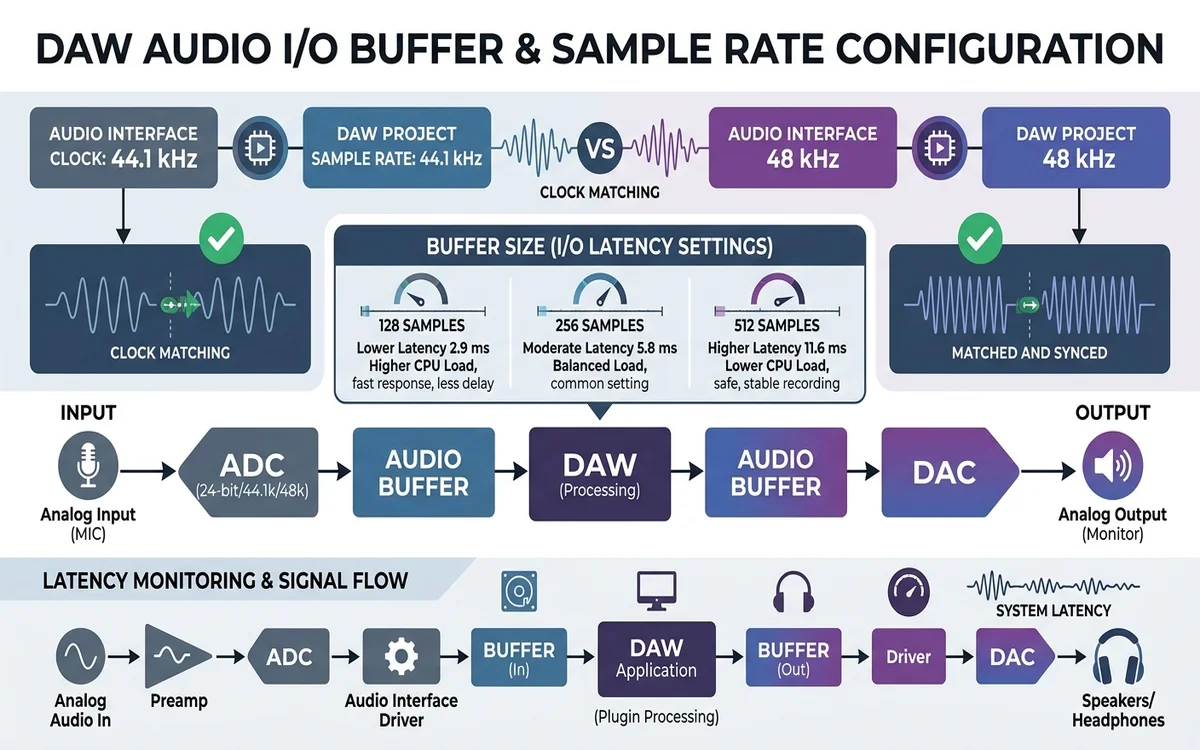
The mathematical formula governing round-trip hardware buffer delay is: Buffer Time (in seconds) = Buffer Size (in samples) / Sample Rate (in Hz). At 48 kHz (48,000 Hz), a buffer size of 256 samples yields an input/output buffering delay of approximately 5.33 milliseconds (ms). When you increase buffer size to 1024 samples during mixdown, delay rises to 21.33 ms.
Clock matching is vital when using ASIO4ALL with Pro Tools. If Windows Sound Settings are locked to 44.1 kHz while your Pro Tools session template is configured for 48.0 kHz, the ASIO driver must execute sample rate conversion or fail to initialize. Discrepancies cause pitch shifting, robotic playback, and catastrophic Pro Tools -6117 and -9129 DAE playback errors.
| Buffer Size (Samples) | Calculated Latency @ 44.1 kHz | Calculated Latency @ 48.0 kHz | Recommended Pro Tools Task | CPU Stability Profile |
|---|---|---|---|---|
| 64 samples | 1.45 ms | 1.33 ms | Ultra-low latency live vocal monitoring & fast MIDI tracking | Demanding on CPU; susceptible to buffer clicks |
| 128 samples | 2.90 ms | 2.67 ms | Standard tracking of instruments and overdubs | Good balance of imperceptible delay and stability |
| 256 samples | 5.80 ms | 5.33 ms | Balanced tracking and moderate virtual instrument production | Highly stable across modern multi-core processors |
| 512 samples | 11.61 ms | 10.67 ms | Standard mixing workflows with active dynamics & EQ plugins | Recommended baseline for general music editing |
| 1024 samples | 23.22 ms | 21.33 ms | Mastering, archival bounce, large orchestral sessions | Maximum stability; avoid for live tracking |
Troubleshooting Common ASIO4ALL and Pro Tools Errors
Even with careful configuration, Windows audio updates and conflicting software can interrupt Pro Tools hardware communication. Below are verified diagnostic solutions for the most frequent operational errors encountered when bridging ASIO4ALL with Pro Tools.
- Error 'Could not initialize the ASIO4ALL v2': Close all background apps like Chrome or Discord that hold exclusive locks on the audio driver. In Windows Sound Control Panel, disable exclusive mode temporarily and restart Pro Tools.
- Pro Tools AAE Error -6117 (Device not configured): Hold down the 'N' key while double-clicking the Pro Tools launcher. When the Playback Engine dialog appears, switch from the unavailable device to ASIO4ALL v2.
- Red 'X' or Yellow Exclamation Mark in ASIO4ALL: A red 'X' means the endpoint is held by another program. Close background audio software. A yellow mark indicates an unsupported sample rate; match Windows and session rates.
- Playback Stutter, Pops, and Crackling Clicks: Audio dropouts indicate CPU buffer under-runs. Open Setup > Playback Engine, increase buffer size to 512 or 1024 samples, and disable background recording inputs.
- Meters Move in Pro Tools but No Sound in Headphones: Navigate to Setup > I/O, open the Output tab, select all paths, click 'Delete Path', and click 'Default' to re-link tracks to the active physical speaker/headphone outputs.
- Session Sample Rate Conflict on Open: If Pro Tools refuses to open a session due to sample rate mismatch, match Windows playback properties Default Format to 44.1 kHz or 48 kHz before opening the project.
Alternative Audio Drivers and Long-Term Recommendations
While ASIO4ALL offers an effective free bridge for onboard soundcards and budget gear, professional studio production benefits from evaluating long-term audio driver architectures.
If you require multi-client audio—allowing YouTube, Spotify, and Pro Tools to play simultaneously through headphones—consider alternative driver solutions such as FL Studio ASIO or FlexASIO. For an in-depth performance breakdown, review our detailed guide on FL Studio ASIO vs ASIO4ALL.
For critical recording environments, investing in a dedicated audio interface featuring custom manufacturer ASIO drivers (from Focusrite, MOTU, or Universal Audio) provides hardware direct monitoring and superior long-term driver stability. If Pro Tools continues to drop sound, consult our ASIO4ALL no sound troubleshooting guide.
ASIO4ALL with Pro Tools FAQ
Can I use ASIO4ALL with Pro Tools on Windows 11 and Windows 10?
Yes. ASIO4ALL is fully compatible with 64-bit Pro Tools on both Windows 11 and Windows 10. Ensure Windows Sound Settings and Pro Tools share identical sample rate settings (typically 48 kHz or 44.1 kHz).
Why does Pro Tools say 'Could not initialize ASIO4ALL v2'?
This error means another application (Chrome, Discord, or a media player) is using the soundcard in exclusive mode, or sample rates conflict. Close background audio apps and match sample rates in Windows.
How do I change the buffer size for ASIO4ALL in Pro Tools?
In Pro Tools, open Setup > Playback Engine and select the H/W Buffer Size dropdown. You can also adjust buffer depth by clicking the green ASIO4ALL icon in the Windows taskbar system notification tray.
Why is there no sound in Pro Tools even though meters are moving?
Go to Setup > I/O, click the Output tab, select all paths, click 'Delete Path', and click 'Default' to re-link session tracks to your active physical outputs.
Can I hear YouTube or Spotify while Pro Tools is running with ASIO4ALL?
ASIO4ALL requires exclusive hardware access to WDM endpoints. When Pro Tools plays audio, desktop apps are muted. To hear both simultaneously, consider FL Studio ASIO or a dedicated hardware audio interface.
What is the shortcut to select playback engine on Pro Tools startup?
Hold down the letter 'N' on your keyboard while launching Pro Tools until the Playback Engine dialog appears on screen.